

How to Provide Parental Consent
2 min read
On this page
- How do I approve a parental consent request for Awesome Golf?
This guide is for parents and guardians who have received a consent request for a child's Awesome Golf account.
Before you begin: Your child must have already started the sign-up process in Awesome Golf Simulator and entered your email address when prompted. If you're completing this process alongside your child, the Setting Up Parental Consent for a Young Golfer tutorial covers both sides of the flow.
- Open the consent request email from Awesome Golf and click the link to Awesome Golf Insights.
- If you don't have an Awesome Golf Insights account, create one when prompted. If you already have one, sign in.
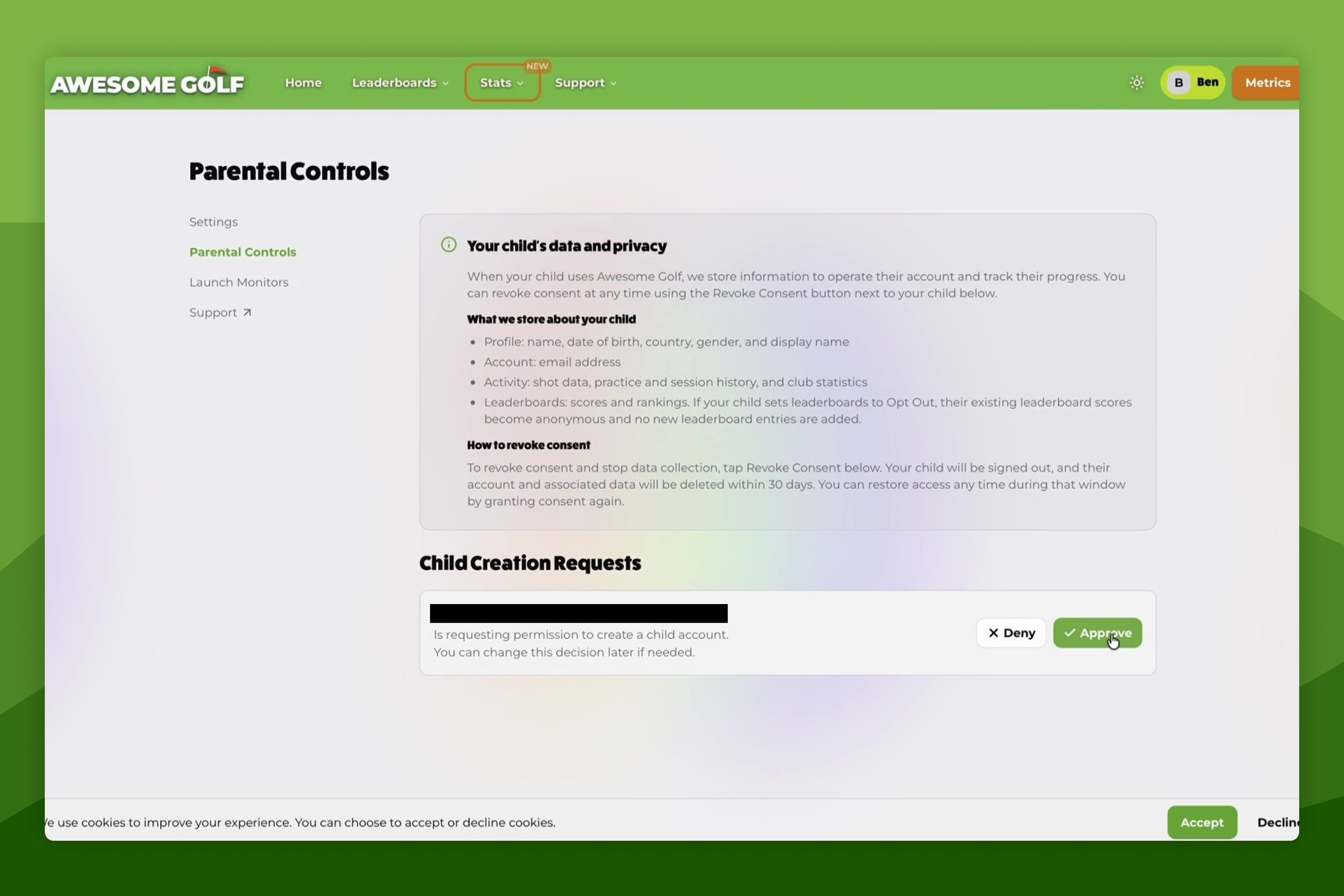
- You will be taken to the Parental Settings page. Under Child Creation Requests, you will see the pending request.
- Review the request and click Approve.
- Return to your child's device. They should press Confirm Consent in Awesome Golf Simulator to complete their sign-up.
Haven't received the email?
Check your spam or junk folder. If you still can't find the email, your child can request it again from within the Awesome Golf app.
To manage or revoke consent in the future, see How to Revoke Parental Consent.
Help & feedback
- View Pricing to see purchase options.
- Try Awesome Golf Simulator with a 14-day free trial, no-commitment.
- Looking for something specific? Search our docs to find what you're looking for.
- If you want help with something specific and could use community support, post in the Awesome Golf Facebook Group.
- Need direct support? Open a Support Request.
- Or Scroll to Top.