

How to Revoke Parental Consent
2 min read
- How do I revoke consent for my child's Awesome Golf account?
Parental consent can be revoked at any time from Awesome Golf Insights. This guide also covers restoring access and unlinking a child account.
Revoke consent
Go to insights.awesome-golf.com/settings/parents and sign in as the parent or guardian.
Alternatively, once you have signed in to Awesome Golf Insights, select Your Name in the top-right corner, then select Parental Settings.
Under the Children section, find the child's account. Select Revoke Consent next to the child's account.
On their next login, the child will see an Access Denied message informing them that their parent or guardian has not permitted access to Awesome Golf. They will be directed to the Insights Parental Dashboard to have access reinstated.
The child can still use Awesome Golf as a one-off guest session, but no statistics or leaderboard entries will be recorded during guest play.
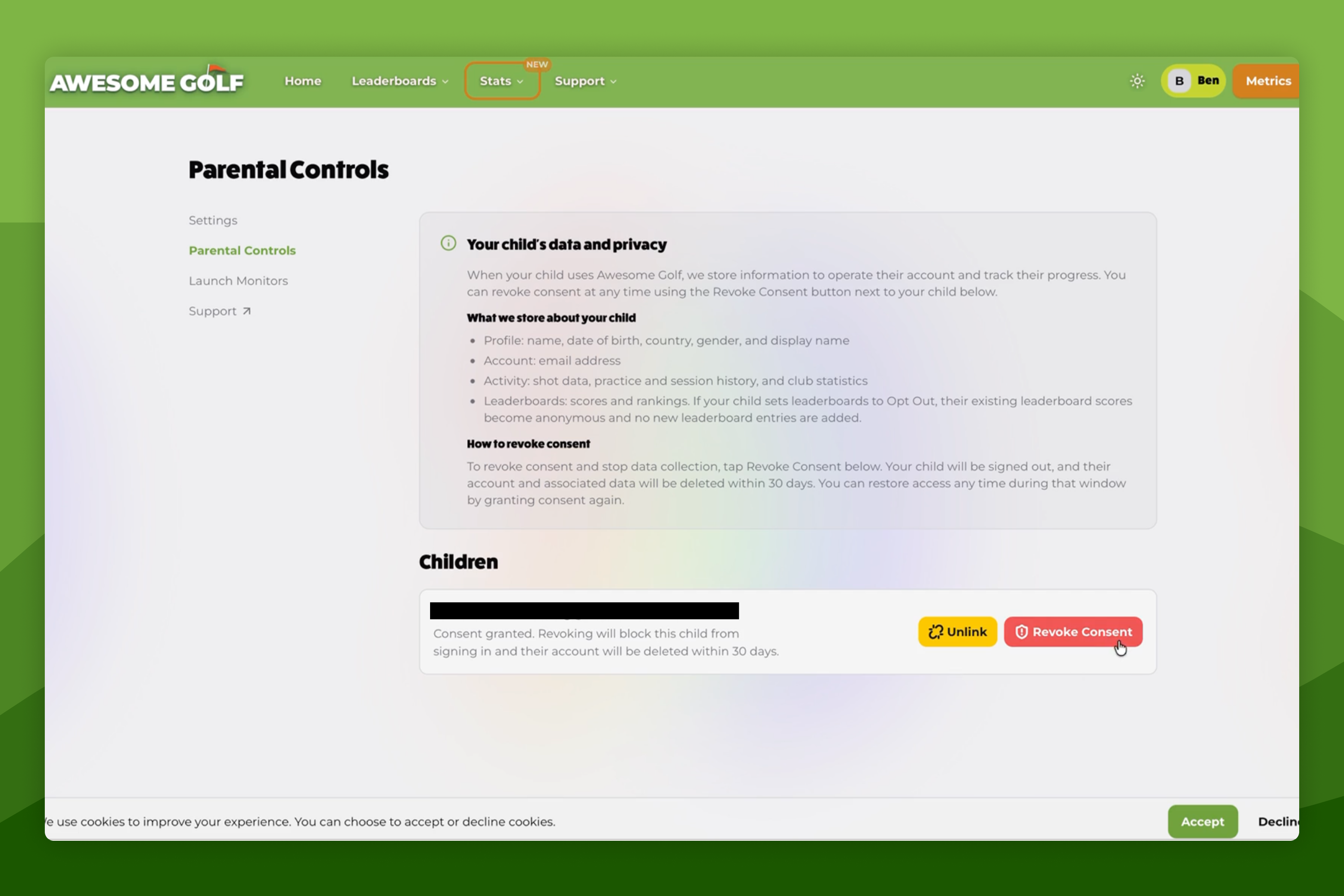
Restore access
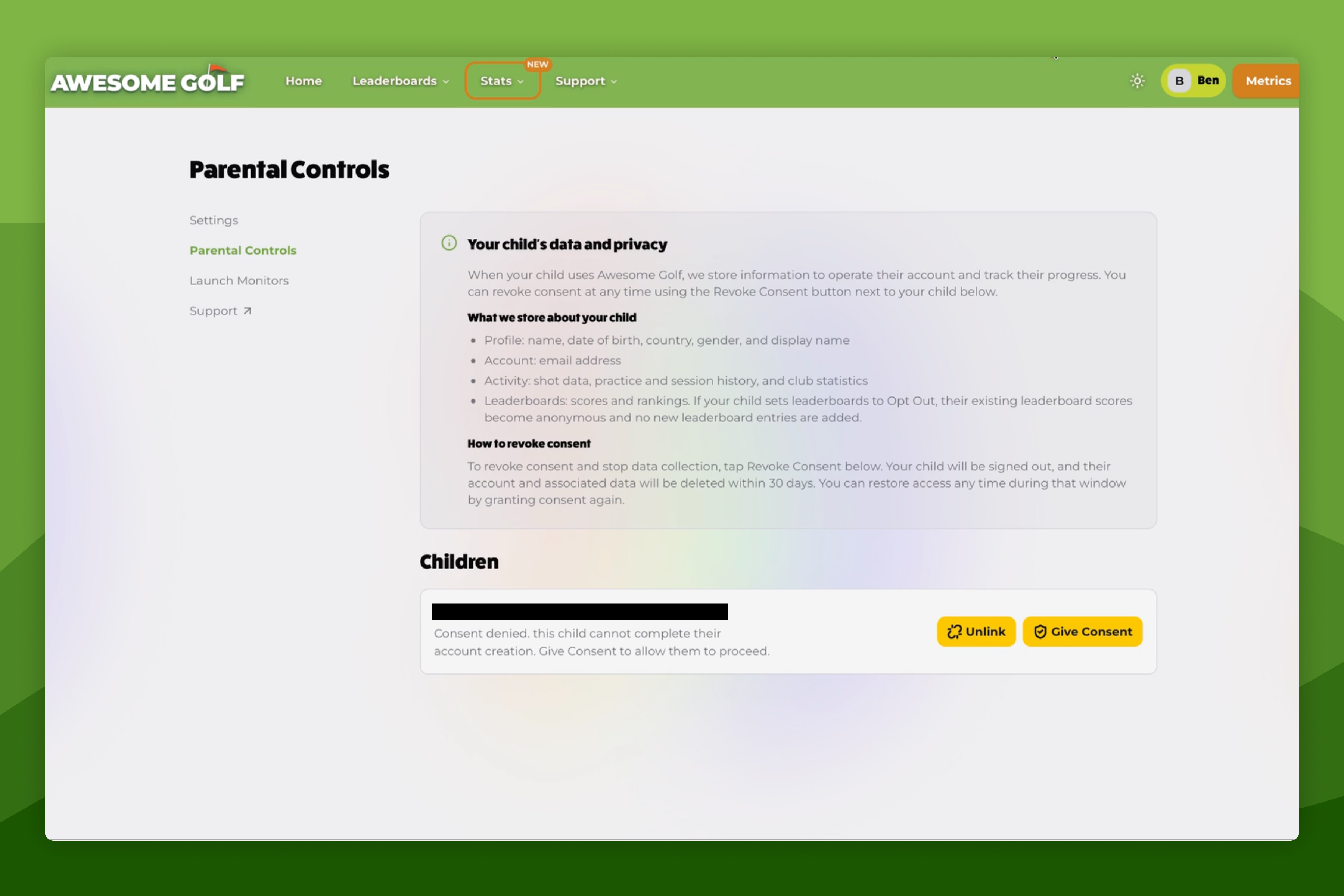
If you change your mind, access can be reinstated at any time within 30 days of revocation. Return to the Parental Settings page in Awesome Golf Insights and click Give Consent next to the child's account.
If consent is not reinstated within 30 days, the child's account and all associated data will be permanently deleted from Awesome Golf's servers.
Unlink a child account
On the Parental Settings page you can also Unlink a child account. This removes the relationship between the parent and child accounts and revokes the child's access to Awesome Golf.
Help & feedback
- View Pricing to see purchase options.
- Try Awesome Golf Simulator with a 14-day free trial, no-commitment.
- Looking for something specific? Search our docs to find what you're looking for.
- If you want help with something specific and could use community support, post in the Awesome Golf Facebook Group.
- Need direct support? Open a Support Request.
- Or Scroll to Top.