

Get Started with Awesome Golf Simulator
4 min read
On this page
This tutorial walks you through your very first setup with Awesome Golf Simulator. Follow the steps in-order and you'll be hitting shots, seeing real-time ball flight, and tracking your stats within minutes.
1. Install & Launch Awesome Golf Simulator
Get the latest version of Awesome Golf Simulator:
- Awesome Golf Simulator - Windows.
- Awesome Golf Simulator - Apple App Store.
- Awesome Golf Simulator - Google Play Store.
Note: The 14-day free trial begins automatically when you connect to a Launch Monitor for the first time.
2. Prepare Your Launch Monitor
Once the app is ready, set up your hardware.
Power on your Launch Monitor and position it correctly for your hitting area according to your Launch Monitor's placement guide - this will likely be behind or beside the hitting area. You may also need to ensure that Wi-Fi or Bluetooth connectivity is enabled on both your Launch Monitor and primary device.
See Connection Guides: Find your Launch Monitor Connection Guide.
3. Connect Your Launch Monitor
With both the app and hardware, let Awesome Golf handle the connection.
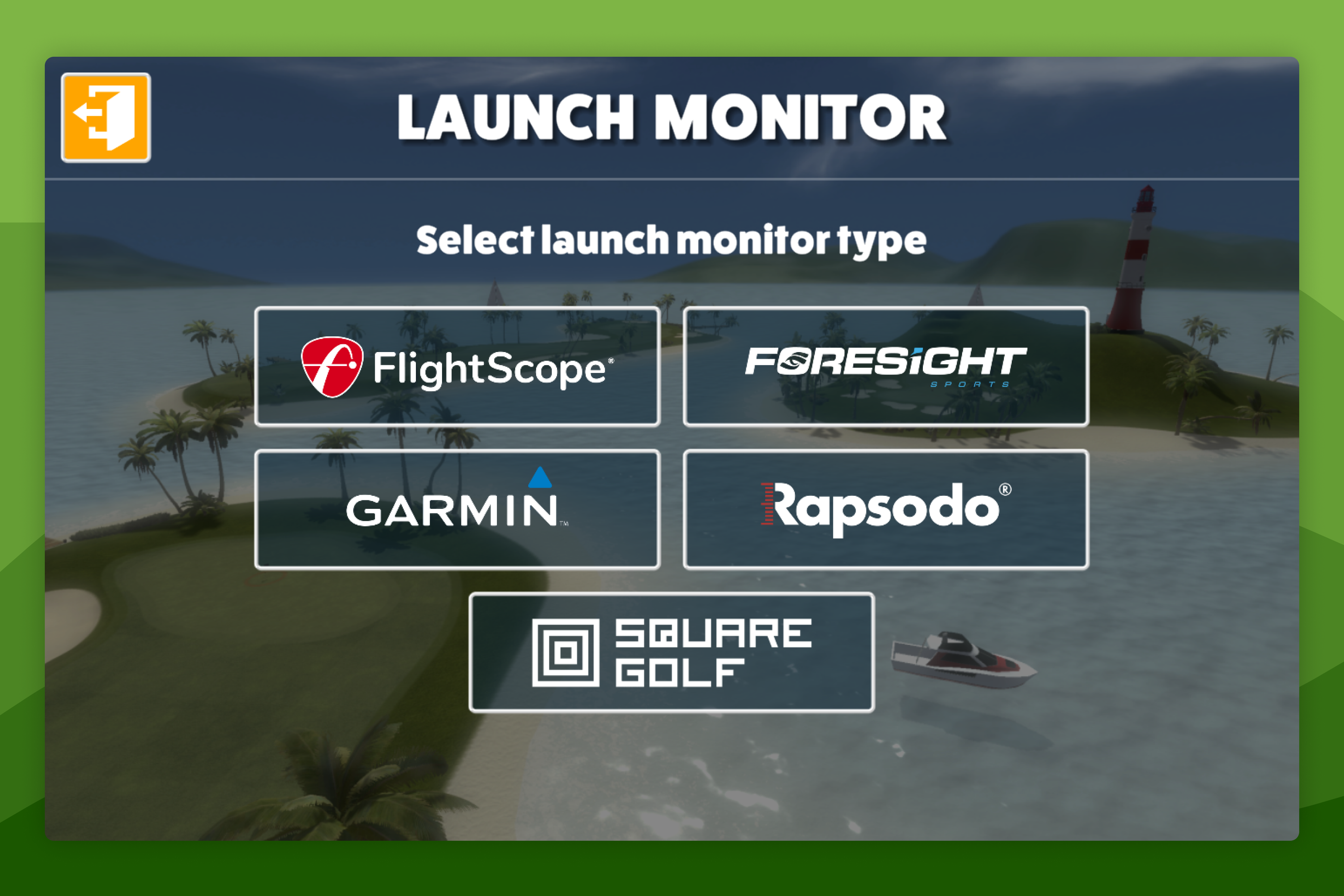
In the app, select your Launch Monitor brand. Awesome Golf will automatically search-for and connect to your Launch Monitor.
If it doesn't connect, refer to the full connection guide for your Launch Monitor.
4. Create Your Player Profile
Once connected, set up your profile so your data and stats can be saved.
- Add yourself using your email address and password. These will be your login details for both Awesome Golf Simulator and Awesome Golf Insights.
- Optional: Add friends, family, or guests to play together.
Learn more: Add players to your game.
5. Choose a Game Mode
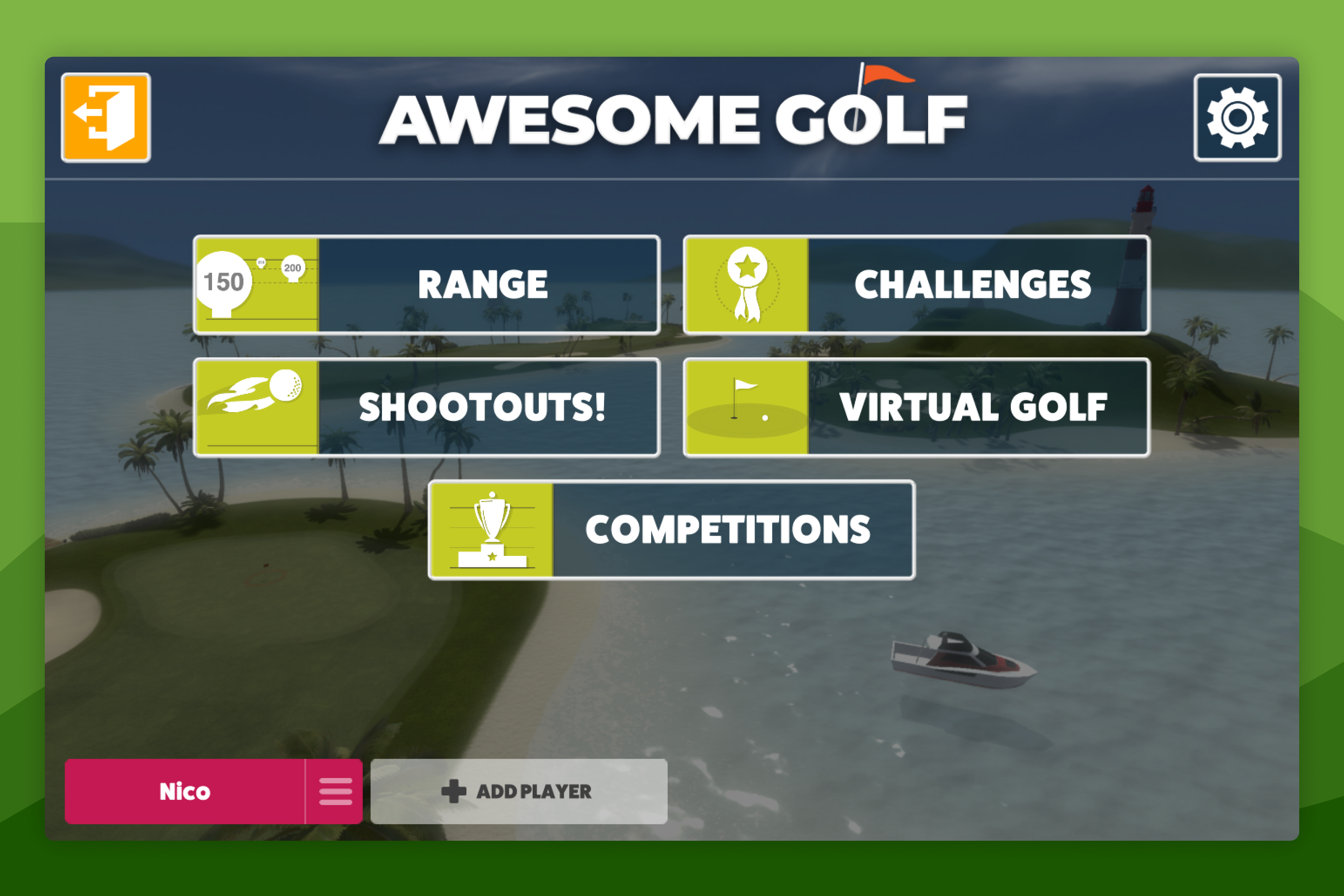
Awesome Golf offers modes for both practice and play.
Start with one of these sections:
- Range - Instant feedback on every shot
- Challenges - Improve specific skills
- Shootouts - Compete with friends and global players
- Virtual Golf - Play full simulated courses
Explore all game modes: Game Modes Overview.
Recommendation: Start in Shot by Shot (Range) if you're new to Launch Monitors.
6. Hit Shots & Understand Your Data
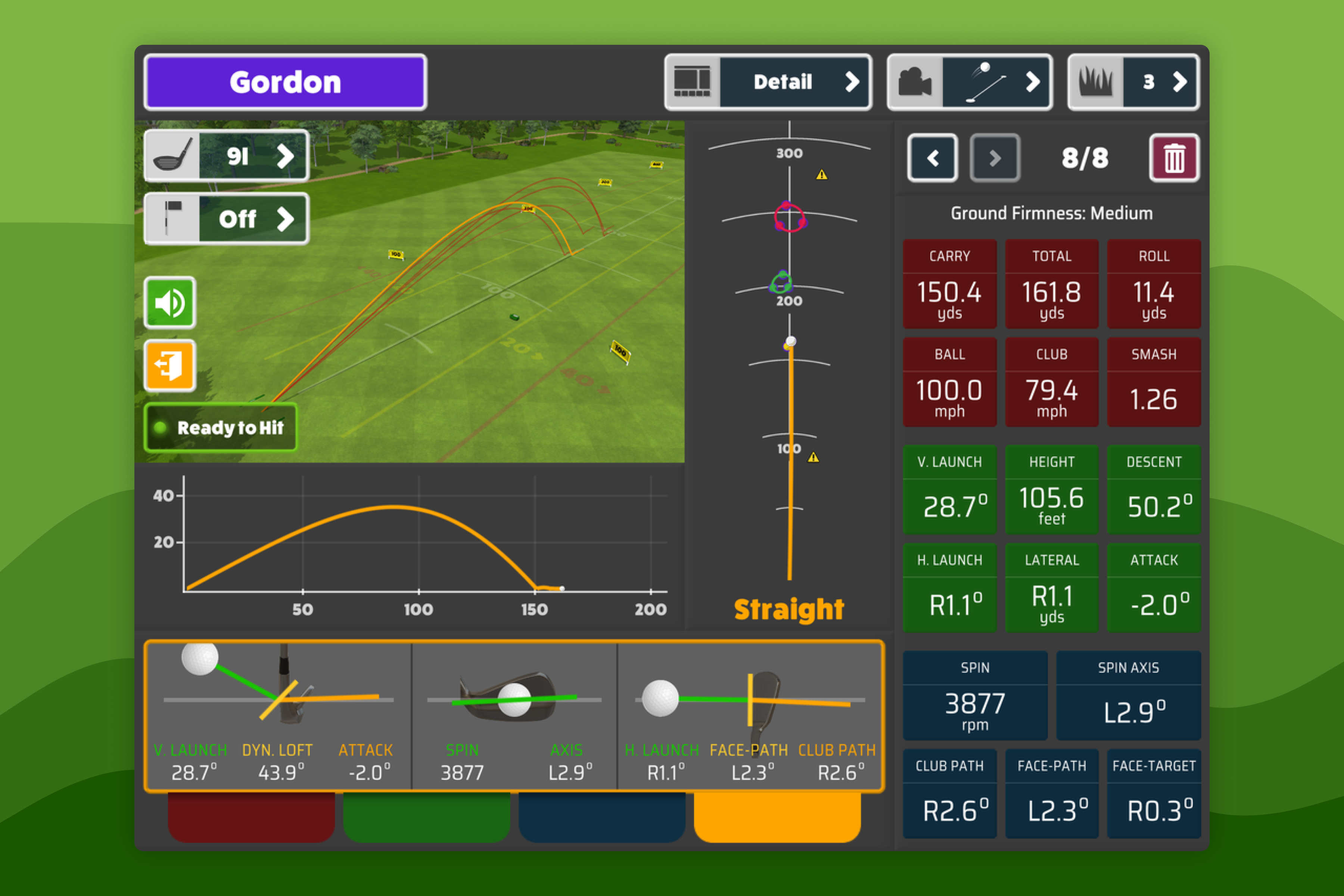
Every swing is tracked and visualised instantly.
You'll see metrics such as:
- Distance
- Direction
- Consistency
- Other key shot data
Your performance is saved automatically and can be reviewed later in Awesome Golf Insights.
7. Track Progress & Join Competitions
Once you're comfortable:
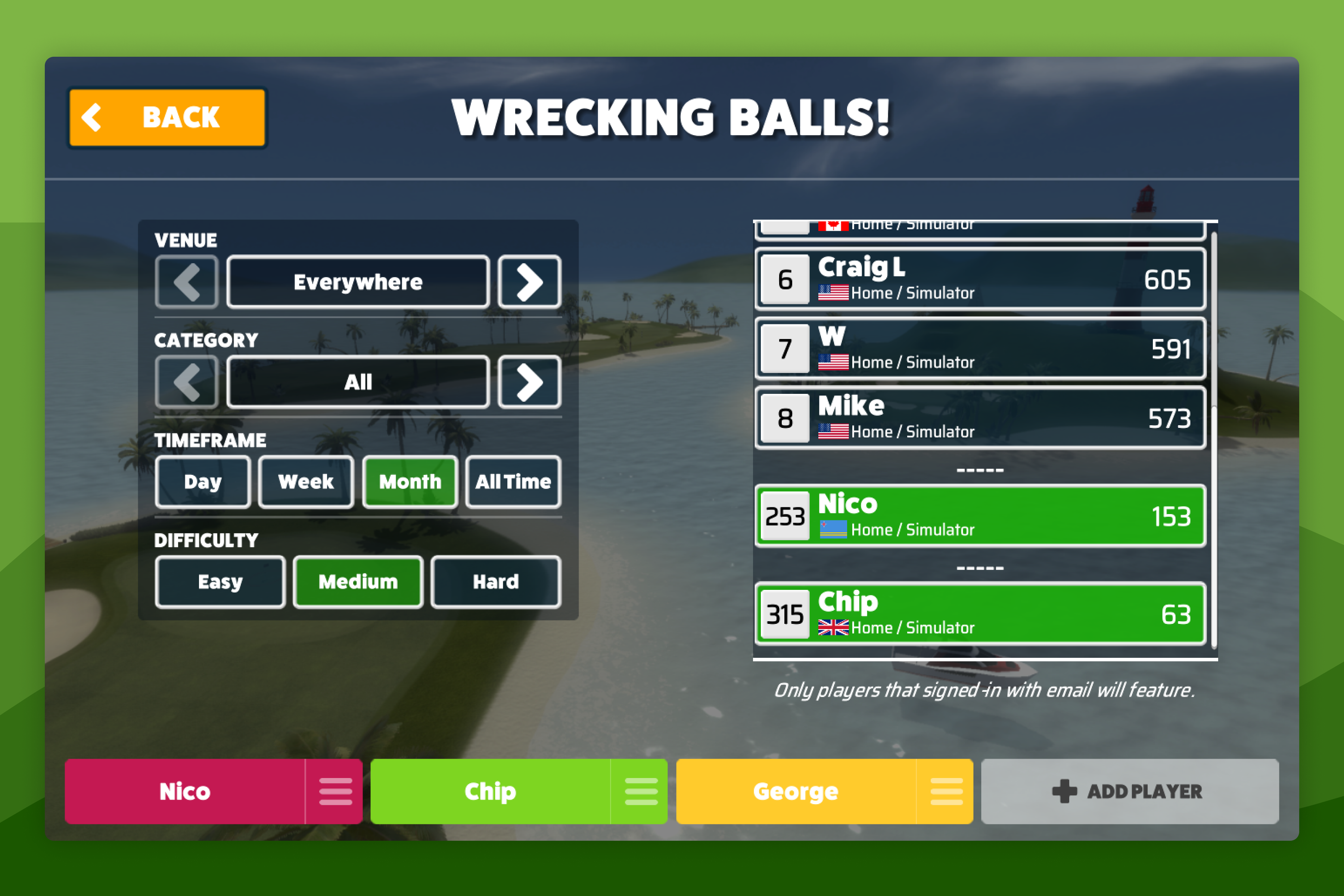
- Join monthly global competitions
- Compare your scores on our leaderboards
- Track your improvement over time
Learn more: Join Competitions and Leaderboards.
8. Explore Our Other Apps
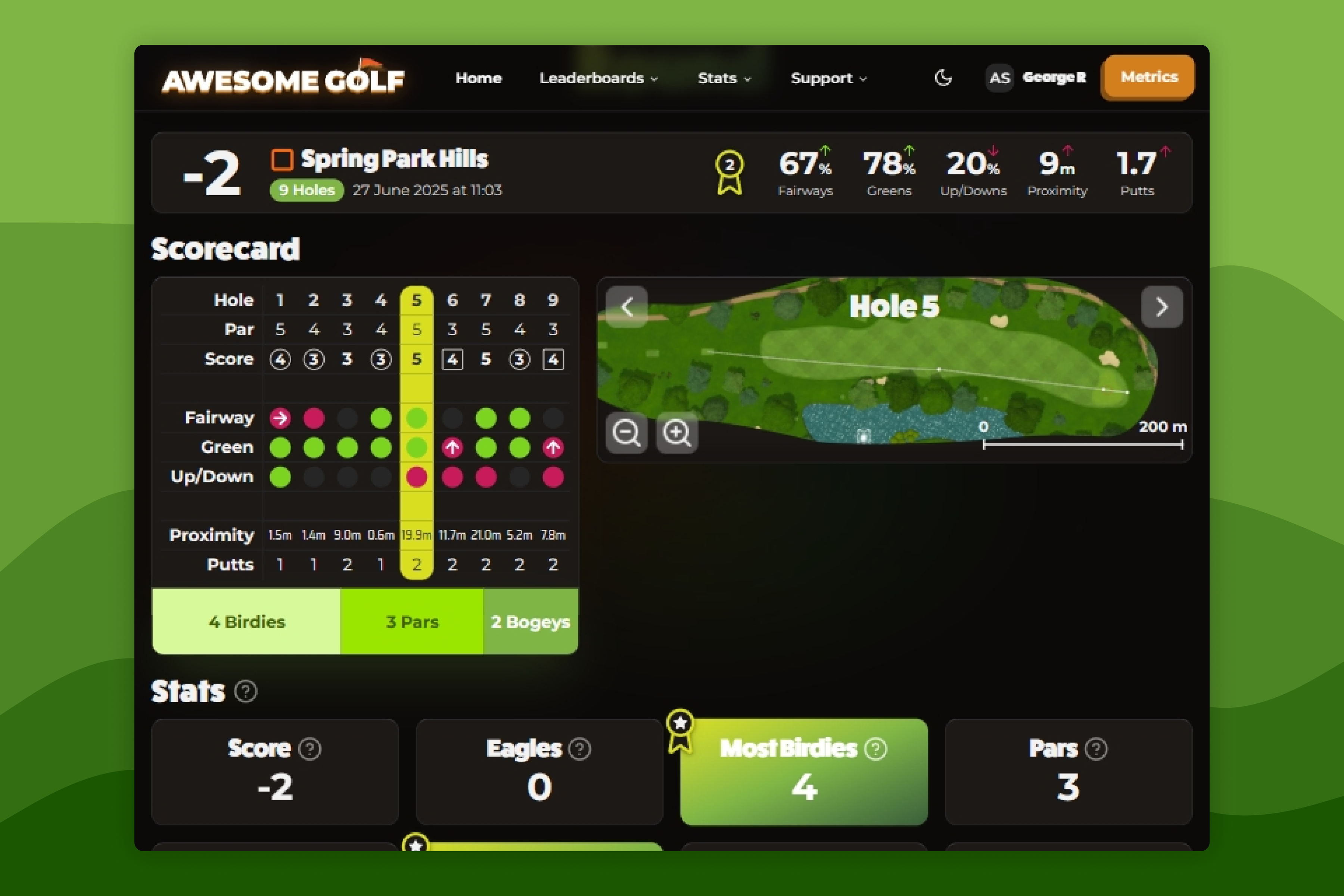
- Awesome Golf Insights - View personal bests, leaderboards, competition scores, session stats. Analyse your performance and compare club metrics.
- Awesome Golf Metrics - Learn what each club and shot metric means.
- Awesome Golf Assistant - Helps connect Launch Monitors to external devices when direct connection isn't possible.
- Awesome Golf Community.
9. Need Help?
If something doesn't work as expected, our support guides cover common setup and connection issues.
Get support:
- Visit the Support & FAQs hub.
- Contact us via Live Chat, WhatsApp, or Email.
10. Quick Start Checklist
- Awesome Golf Simulator installed and opened.
- Launch Monitor powered on and positioned correctly.
- Launch Monitor connected to Awesome Golf.
- Player profile created.
- Started in Shot by Shot (Range).
- Hit your first shots!
Help & feedback
- View Pricing to see purchase options.
- Try Awesome Golf Simulator with a 14-day free trial, no-commitment.
- Looking for something specific? Search our docs to find what you're looking for.
- If you want help with something specific and could use community support, post in the Awesome Golf Facebook Group.
- Need direct support? Open a Support Request.
- Or Scroll to Top.