

Setting Up Parental Consent for a Young Golfer
2 min read
On this page
This tutorial walks a parent and child through creating a child account in Awesome Golf Simulator, including requesting and approving parental consent. By the end, the child will have a fully active account with the parent's consent recorded. For background on why consent is required, see Understanding Parental Consent.
What you'll need:
- A launch monitor connected to a device running Awesome Golf Simulator
- The child's date of birth and country
- A parent or guardian's email address
Step 1: The child begins sign-up
After connecting to a launch monitor, the child starts the sign-up flow in Awesome Golf Simulator. On Step 2 of 5, they enter their date of birth, country, and leaderboard category.
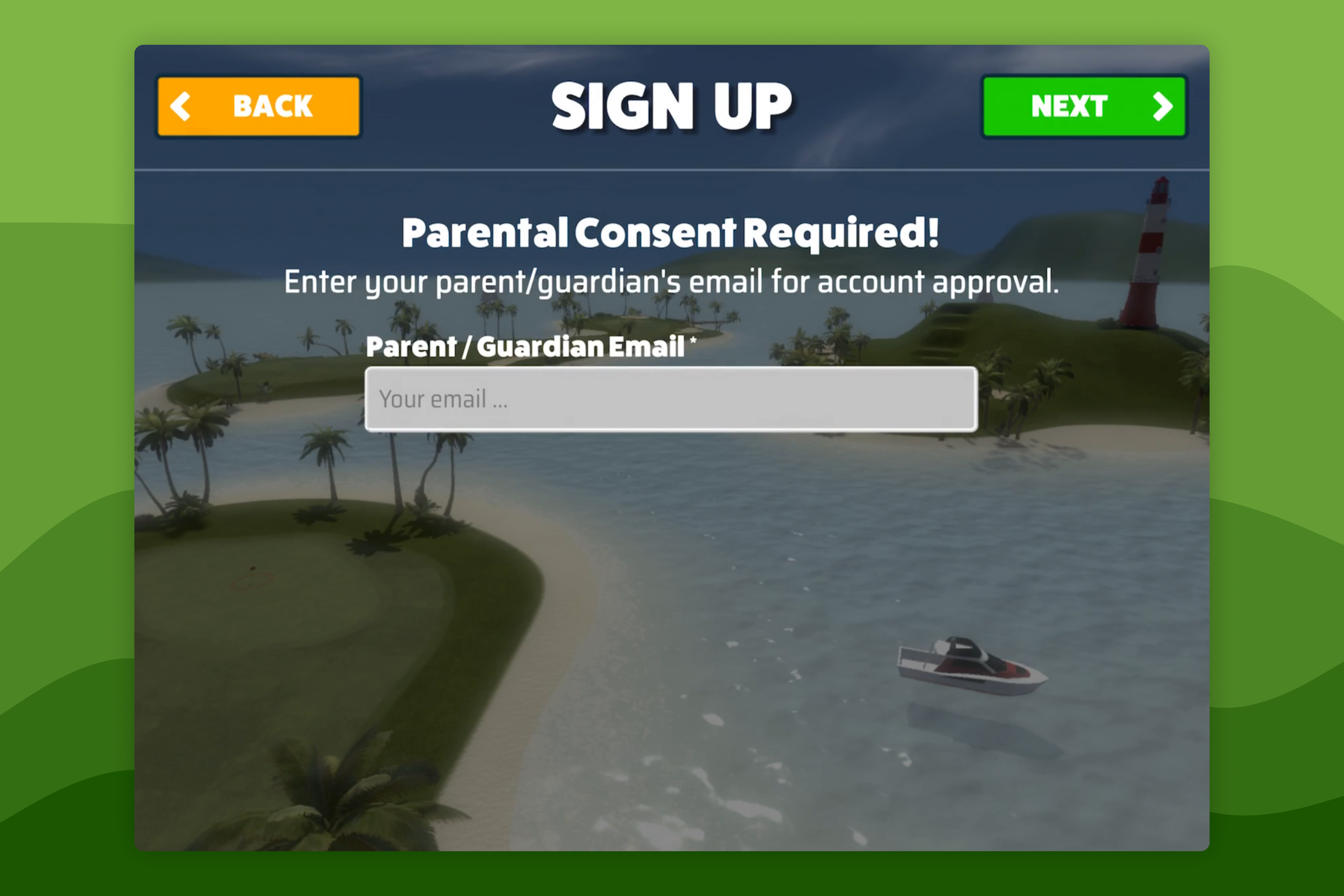
If the date of birth indicates that parental consent is required, the child is prompted to enter their parent or guardian's email address.
Step 2: The child waits for confirmation
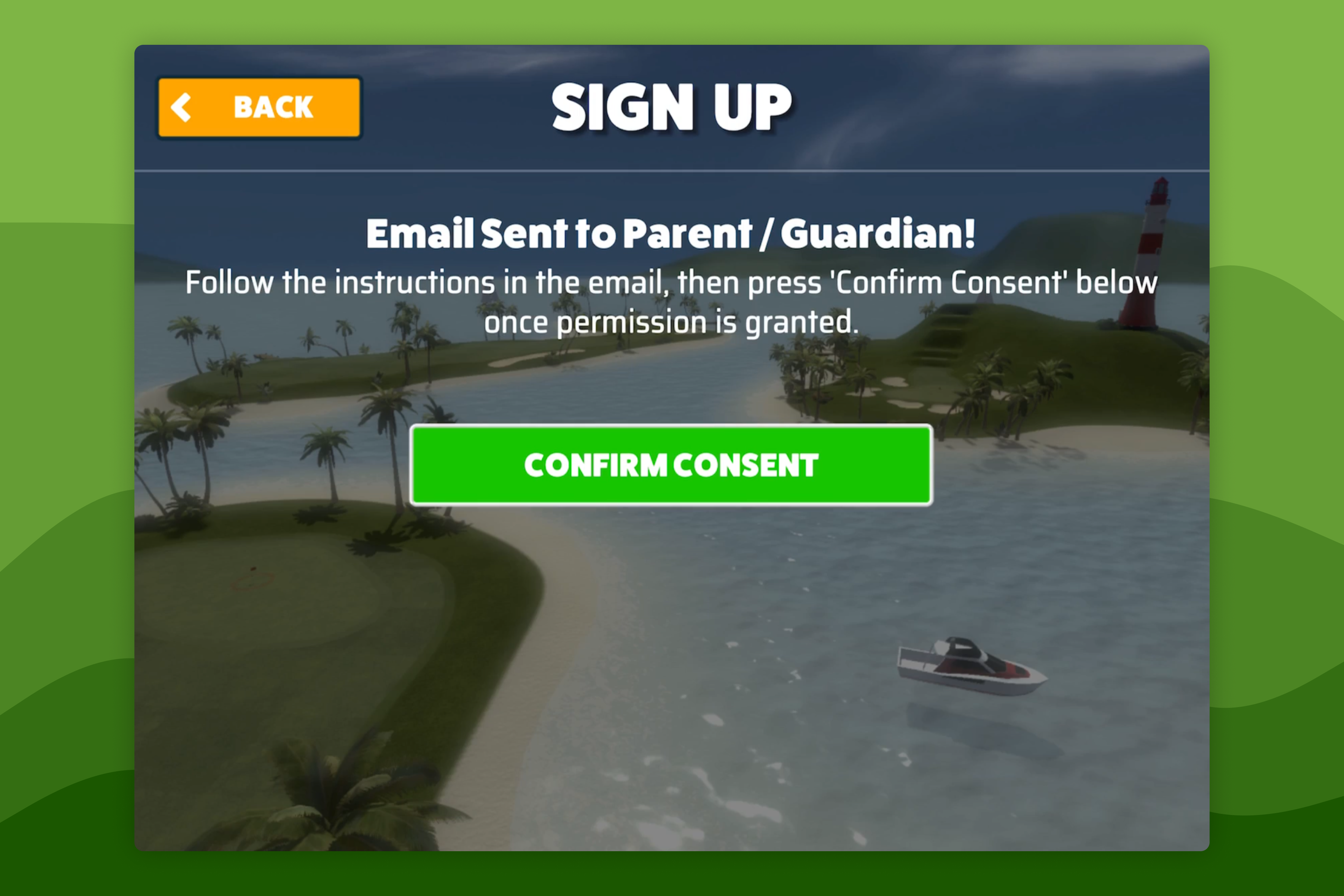
After submitting the parent's email address, the child will see a confirmation screen. They should leave the app open and wait while the parent completes the next step - then press Confirm Consent to continue.
Haven't received the email? The parent should check their spam or junk folder. If it still can't be found, the child can request it again from within the app.
Step 3: The parent approves in Awesome Golf Insights
The parent or guardian will receive a consent request email from Awesome Golf. Clicking the link in the email opens Awesome Golf Insights.
- If you don't yet have an Insights account, create one when prompted. Otherwise, sign in.
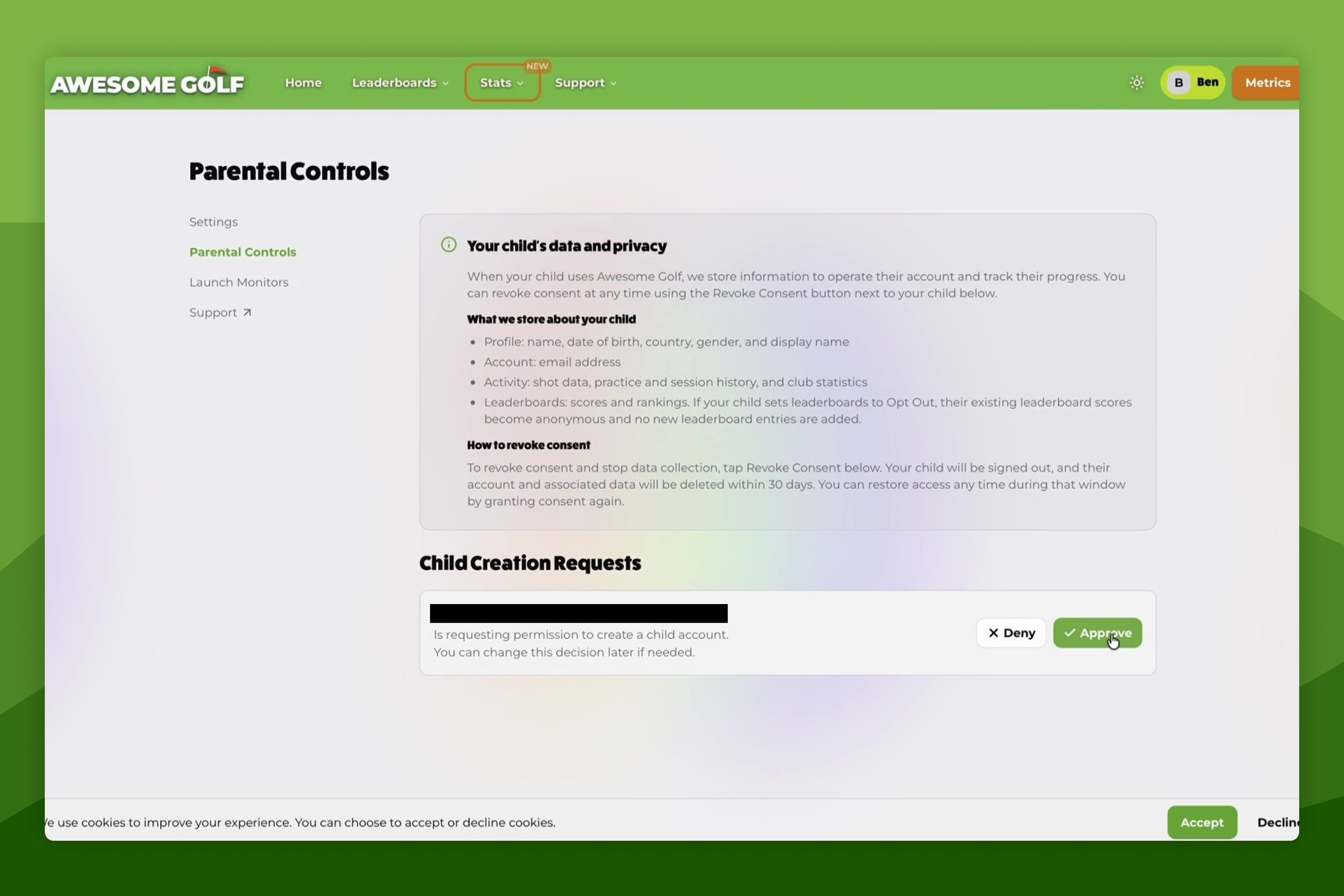
- You will be taken directly to the Parental Settings page. The pending request will appear under Child Creation Requests.
- Review the details and click Approve.
Step 4: The child confirms and continues
Once the parent has approved, the child presses Confirm Consent in the Awesome Golf Simulator app. The sign-up flow then continues through the remaining steps.
The child's account is now active and their progress - shots, sessions, and leaderboard entries - will be saved.
To manage or revoke consent in the future, see How to Revoke Parental Consent.
Help & feedback
- View Pricing to see purchase options.
- Try Awesome Golf Simulator with a 14-day free trial, no-commitment.
- Looking for something specific? Search our docs to find what you're looking for.
- If you want help with something specific and could use community support, post in the Awesome Golf Facebook Group.
- Need direct support? Open a Support Request.
- Or Scroll to Top.