

Fix the "R50 Hotspot Connection Lost" Error on Garmin Approach R50
2 min read
This guide helps you resolve the R50 hotspot connection lost error when using a Garmin Approach R50 with Awesome Golf Simulator.
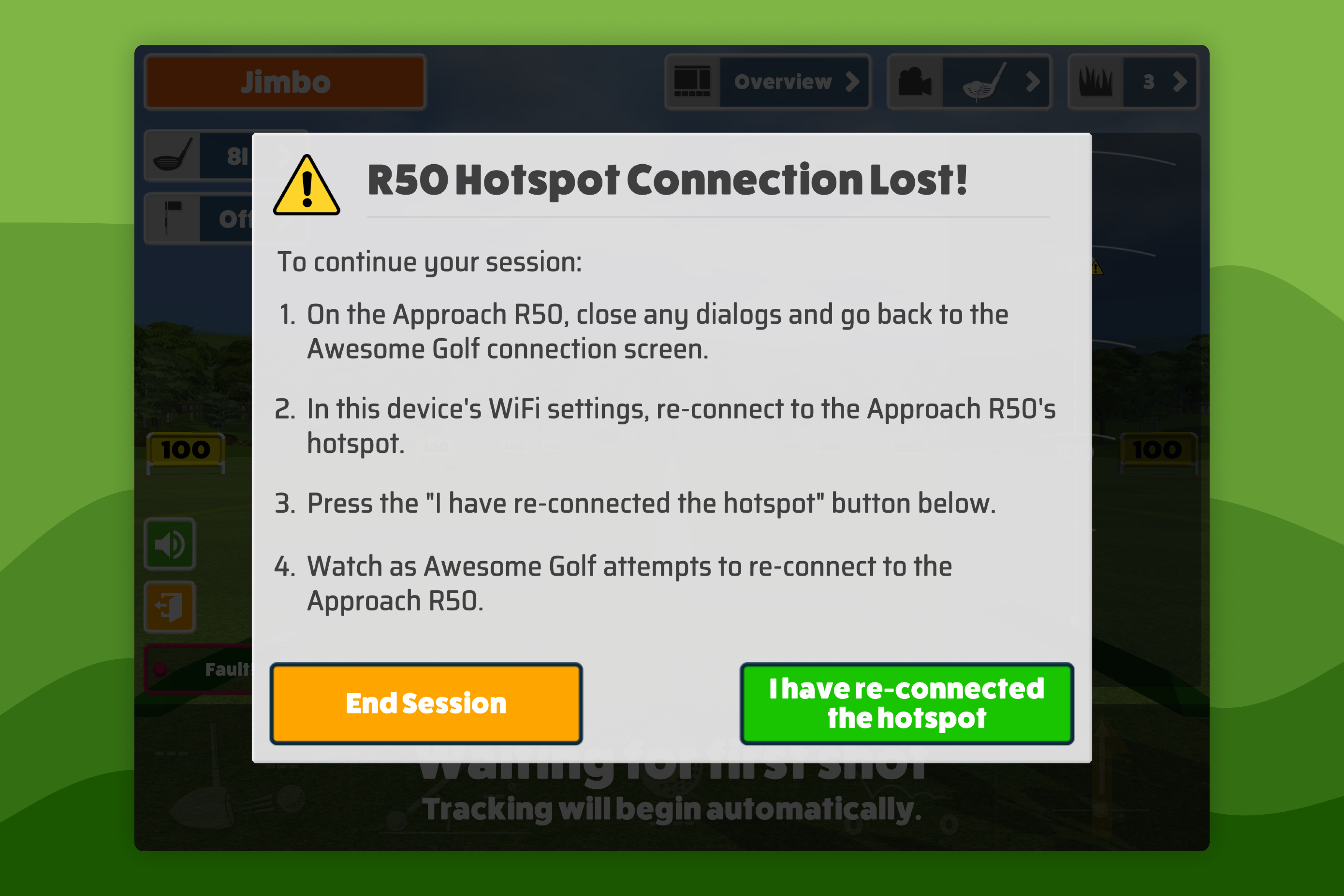
When the connection troubleshooting dialogue appears in Awesome Golf Simulator, follow the steps below.
Reconnect to the Approach R50 hotspot
On the Approach R50, close any open dialogues and return to the Awesome Golf Simulator connection screen to re-display the R50's connection details.
If the device has returned to the Main Menu, scroll across twice to reach the Connect Menu and select Awesome Golf Simulator. The R50 will re-display its hotspot name and password.
In your device's Wi-Fi settings, reconnect to the Approach R50's Wi-Fi network using the displayed credentials.
In the troubleshooting dialogue on your device, select I have re-connected the hotspot.
Awesome Golf Simulator will attempt to reconnect and resume your session without losing data.
If the above steps fail, turn off Wi-Fi on your device, restart the Approach R50 (turn it off then on again), then repeat from step 1.
Update Approach R50 firmware
Some disconnection issues are fixed by firmware updates. The Approach R50 downloads the latest firmware automatically when connected to a Wi-Fi network with Internet access.
Garmin Express can also install firmware updates over USB and can notify you when new updates are released.
See the Garmin Approach R50 manuals for general guidance on using the R50.