

How to Update Rapsodo MLM2PRO Firmware
2 min read
On this page
Firmware for the Rapsodo MLM2PRO can be updated using the MLM2PRO app.
Power-on your Rapsodo MLM2PRO and open the MLM2PRO app.
Select Profile in the bottom right, then select Connect MLM2PRO and follow the steps to connect your Launch Monitor.
On the "Connection Successful" screen, select View Device Info.
Alternatively, if the MLM2PRO is already connected, select the connected MLM2PRO option in the profile menu.
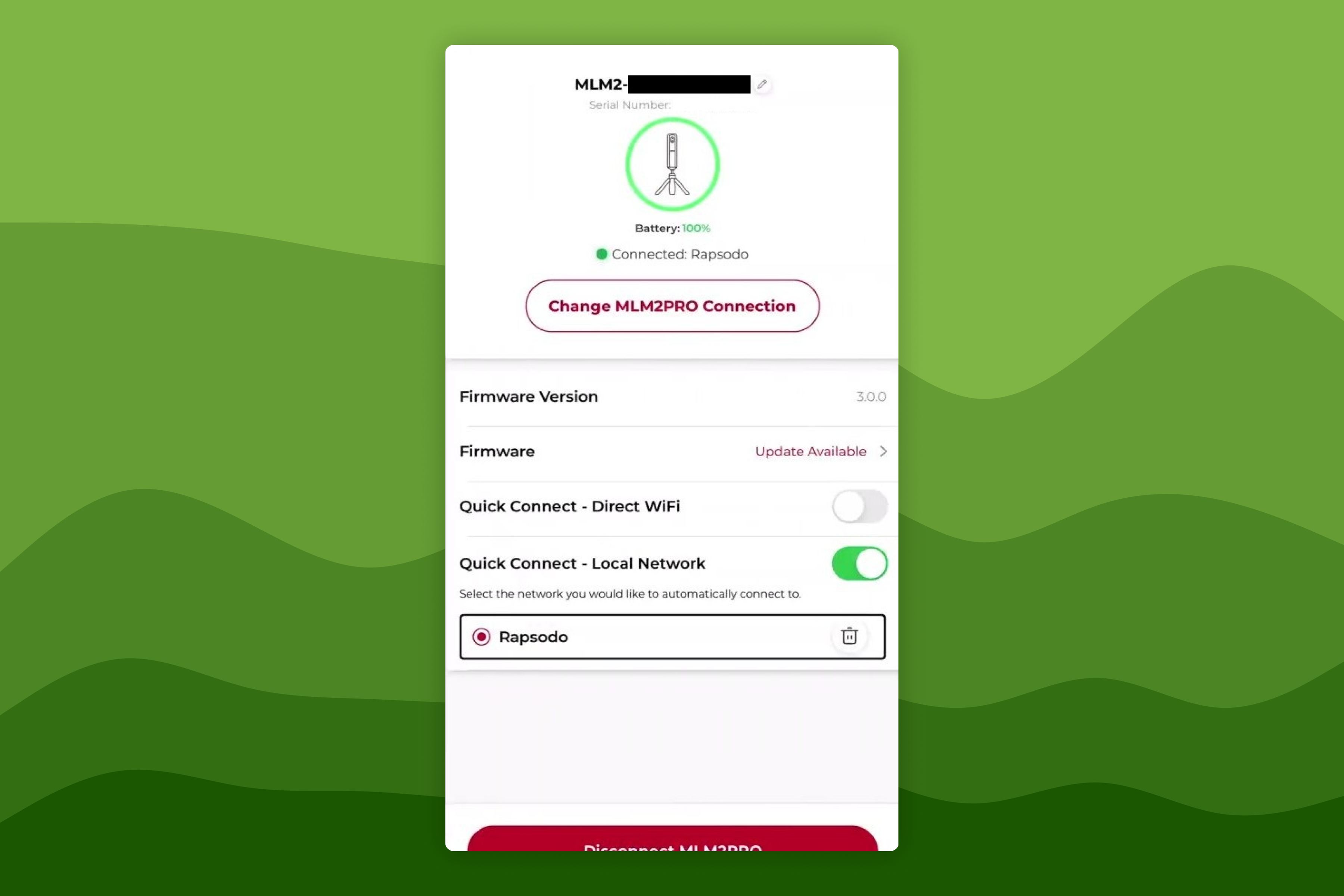
The device info screen displays your current firmware version. If a firmware update is available, this will display an "Update Available" indicator.
Select Update Available, then select Download to start downloading the firmware update.
Once the firmware version has been downloaded, a popup will display to indicate this.
Return to the Device Info screen by selecting the connected MLM2PRO option in the profile menu.
Select Install Firmware and follow the on-screen prompts to start the firmware update.
Your MLM2PRO will flash white while the firmware is being installed - once the update is complete the LED indicator will turn red. You may need to re-connect your Launch Monitor to continue your session after updating the firmware.
For more guidance on updating your MLM2PRO, see the following guide from Rapsodo: youtube.com/watch?v=awU6ByECZCs.
Confirm your Rapsodo MLM2PRO's Firmware Version
You can verify your firmware version in the MLM2PRO app:
Power-on your Rapsodo MLM2PRO and open the MLM2PRO app.
Select Profile in the bottom right, then select Connect MLM2PRO and follow the steps to connect your Launch Monitor. On the "Connection Successful" screen, select View Device Info.
Alternatively, if the MLM2PRO is already connected, select the connected MLM2PRO option in the profile menu.
The device info screen displays your current firmware version.
Help & feedback
- View Pricing to see purchase options.
- Try Awesome Golf Simulator with a 14-day free trial, no-commitment.
- Looking for something specific? Search our docs to find what you're looking for.
- If you want help with something specific and could use community support, post in the Awesome Golf Facebook Group.
- Need direct support? Open a Support Request.
- Or Scroll to Top.