

How to Enable Debug Logging
3 min read
On this page
Activity/Debug logs help us diagnose any issues that you might be experiencing by reporting additional information to us - the following guide outlines how to do so. We use debug logs to help us fix bugs and re-create issues to help us deliver the best experience.
Awesome Golf Simulator
After connecting to your Launch Monitor, open Awesome Golf Simulator and wait for the Launch Monitor selection screen. If Awesome Golf Simulator is open, restart the app to return to the Launch Monitor selection screen.
If you're using an Android device, you will only see Garmin and Rapsodo as options but the operation of this screen is identical.
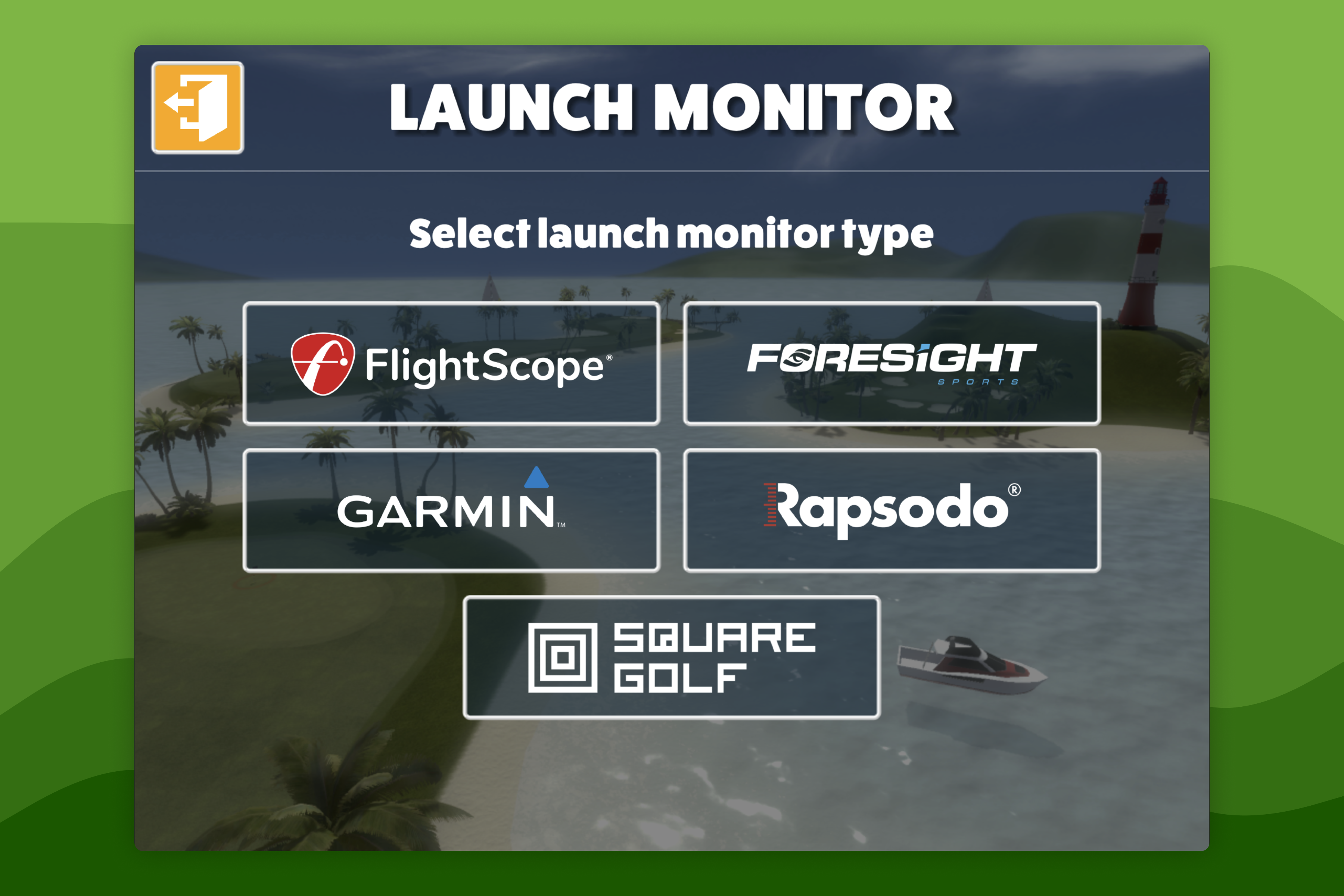
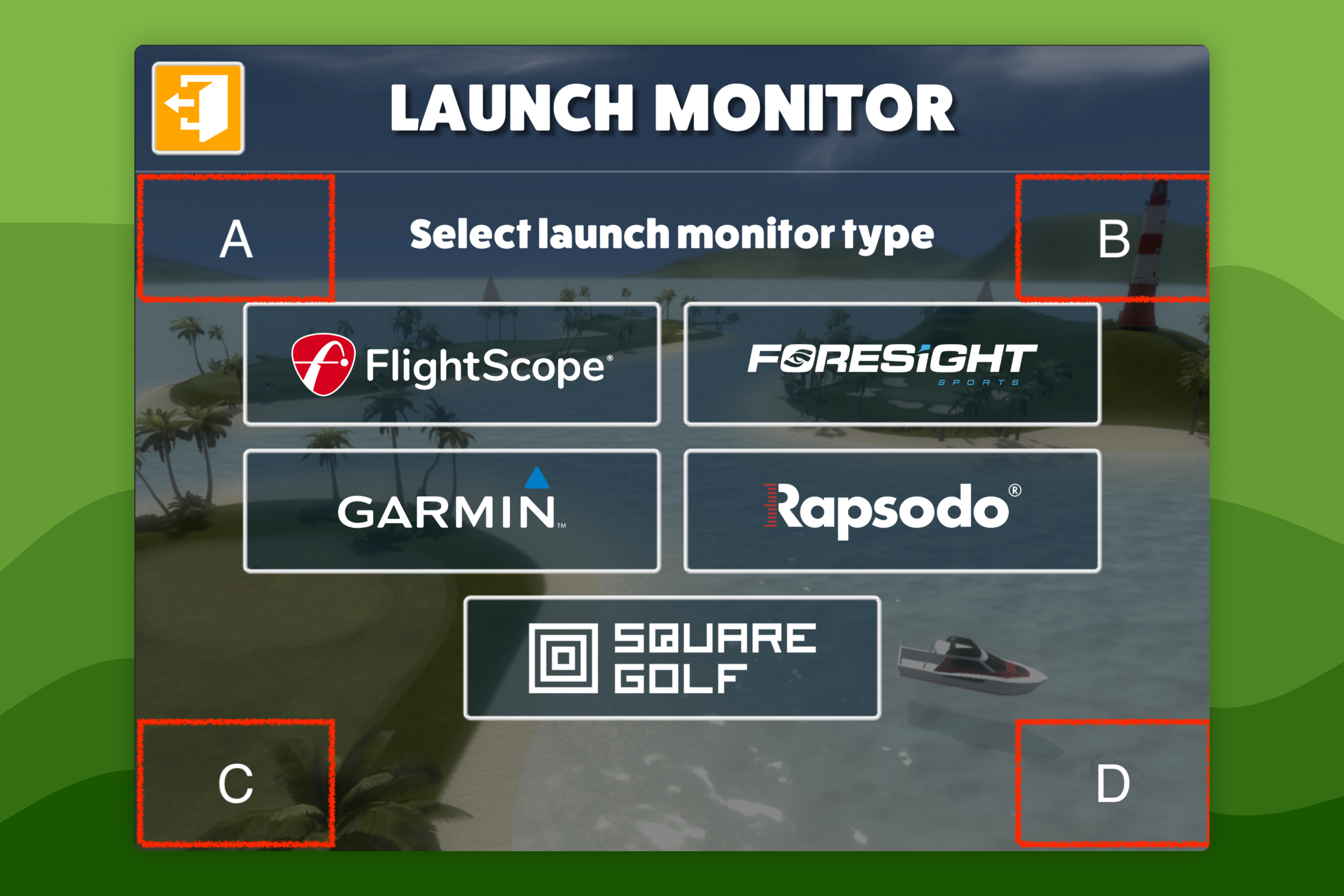
There are four hidden buttons in the top-left (A), top-right (B), bottom-left (C), and bottom-right (D) of the main portion of the screen.
To start collecting the activity logs from your session, enter the sequence: C-C-C-B-A-D-C. These buttons are not visible but do function.
After you have entered the code successfully you will see the message Code Acknowledged! at the bottom of the screen and also hear a bright sound effect if you have your sound settings turned on.
After you see the message Code Acknowledged!, activity logging is now enabled and you can now start using the software to replicate the issue you have been experiencing.
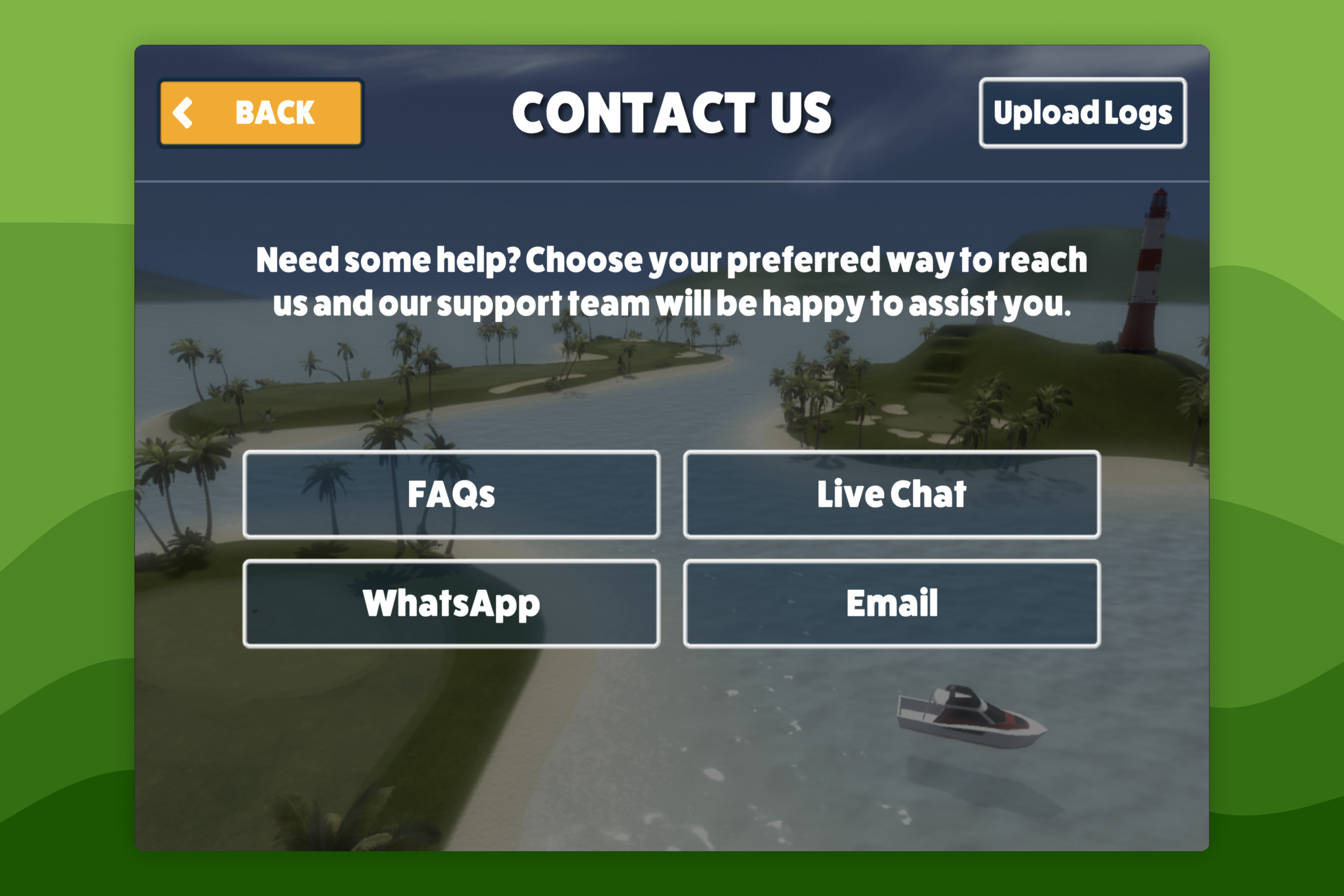
Now go and replicate the issue that you have previously contacted us about. Once you have accomplished this, go to Settings → Contact / Support, then select the Upload Logs button in the top-right corner of the screen. Your logs will be received by our development team who will investigate this issue as a matter of urgency.
If your issue causes the Awesome Golf Simulator app to freeze or crash, you can still submit a support message from in the Awesome Golf Simulator app to submit your logs. After a crash, reopen the app, connect to your Launch Monitor, sign in, then go to Settings → Contact / Support and select your preferred communication platform.
Starting in v3.6.0, the final step of the log upload process was simplified to help us assist you and compliment our new support system. In versions prior to v3.6.0, the Upload Logs button is not available; please update Awesome Golf Simulator to the latest version at no additional cost.
Help & feedback
- View Pricing to see purchase options.
- Try Awesome Golf Simulator with a 14-day free trial, no-commitment.
- Looking for something specific? Search our docs to find what you're looking for.
- If you want help with something specific and could use community support, post in the Awesome Golf Facebook Group.
- Need direct support? Open a Support Request.
- Or Scroll to Top.