

How to Configure Audio Settings in Awesome Golf
1 min read
- How do I adjust/mute the audio?
While playing in a game mode in Awesome Golf, all audio can be muted by pressing the green Mute Audio button (🔇) on the left side of the screen. This button will toggle the audio while you play and will affect your current session.
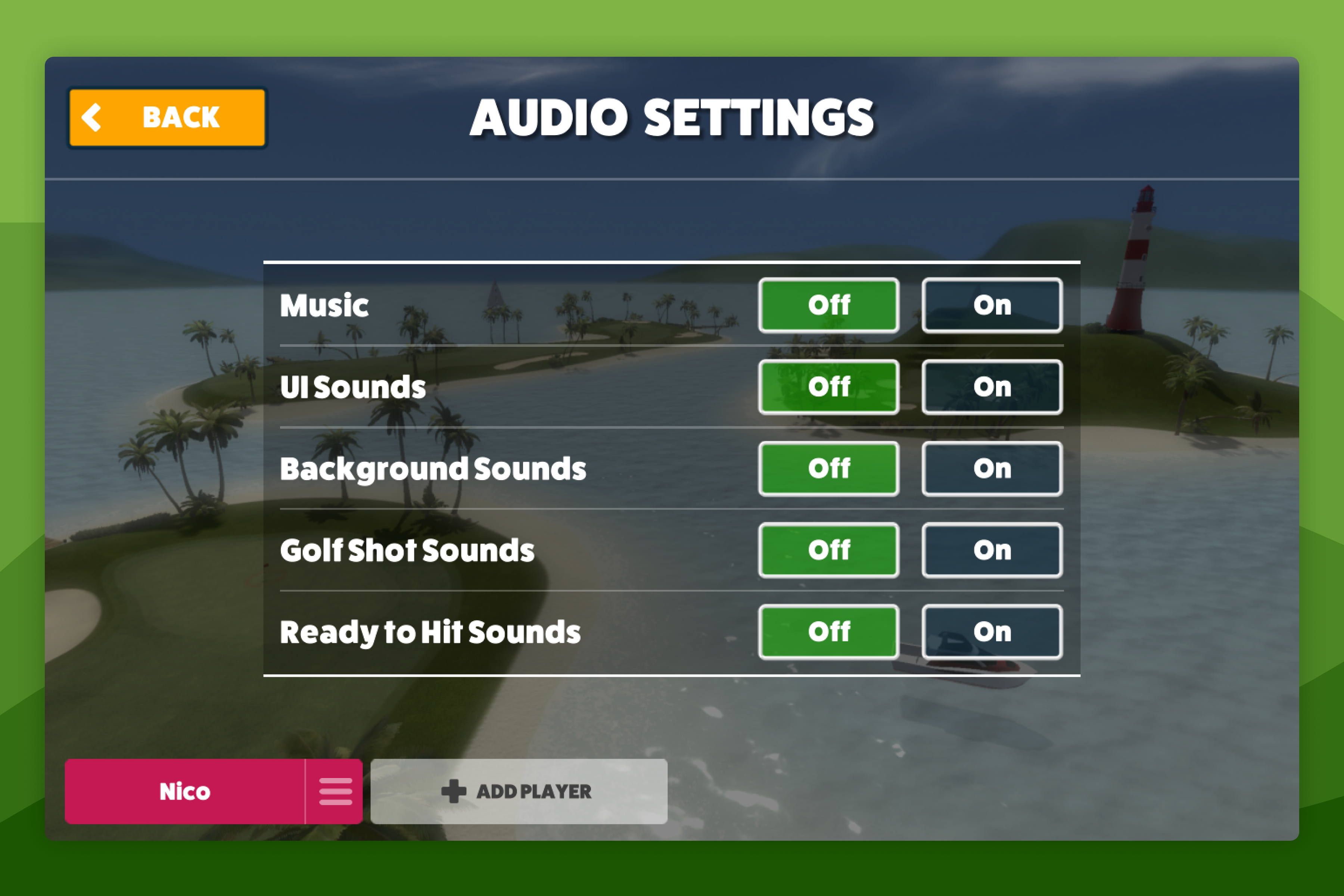
From the Main Menu, Audio Settings can be adjusted by selecting Settings → Audio. From the Audio Settings Menu you can control the on/off switches for music, UI sounds, background sounds, golf shot sounds, and ready-to-hit sounds. These audio settings are saved and will continue to take effect if Awesome Golf is re-opened.
Help & feedback
- View Pricing to see purchase options.
- Try Awesome Golf Simulator with a 14-day free trial, no-commitment.
- Looking for something specific? Search our docs to find what you're looking for.
- If you want help with something specific and could use community support, post in the Awesome Golf Facebook Group.
- Need direct support? Open a Support Request.
- Or Scroll to Top.