

How to Update Foresight Sports GC2 (2026) Firmware
1 min read
Firmware for the Foresight Sports GC2 (2026) can be updated automatically while the Launch Monitor is connected to the Internet.
Update your GC2 (2026) Firmware Automatically Over the Internet
Power-on the GC2 (2026) and connect it to power.
Connect the Launch Monitor to the Internet via:
- Ethernet cable
- Wi-Fi
If an update is available it will be applied automatically when connected to the Internet.
For more guidance on updating your Foresight Sports GC2 (2026), see the following guide from Foresight: help.foresightsports.com/hc/articles/56166282360851.
Update your GC2 (2026) Firmware using the Foresight App over USB-C
Power on the GC2 (2026) and connect it to a Windows PC running the Foresight App using a USB-C cable.
The Foresight Sports app will notify you when a firmware update is available.
Follow the on-screen prompts to download and install the firmware update.
Confirm your 2026 GC2's Firmware Version
You can verify your firmware version in any of these places whilst your Launch Monitor is powered on:
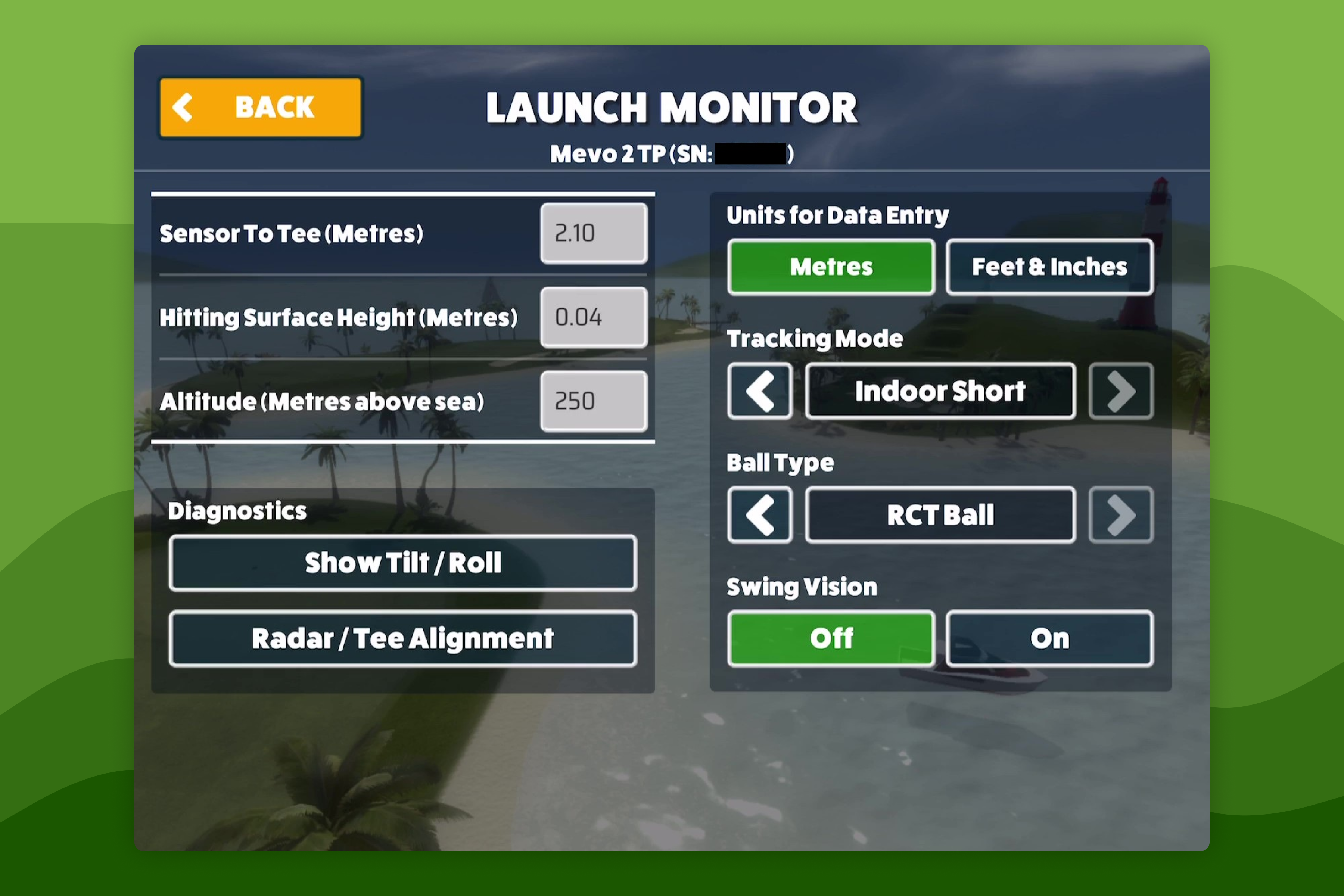
- Awesome Golf Simulator → Settings → Launch Monitor
Share this page
Related guides
- How to Connect Your Foresight Sports GC2 (2026)The Foresight Sports GC2 (2026) is a dual camera-based Launch Monitor system by Foresight Sports that captures ball data for indoor and outdoor use. It features an LCD display and multiple connectivity methods, including Ethernet, USB-C, and Wi-Fi.
 How-To GuidesHow to Configure Launch Monitor SettingsWhen connected to a Launch Monitor the connection status will be displayed in the bottom left of the screen when playing a Game Mode - this lets you know that your Launch Monitor is connected and when the Launch Monitor indicates that its ready to track a swing.
Still need help?
- Contact supportLive chat, WhatsApp or email
- Ask the communityAwesome Golf Facebook group
- Search the docsFind another guide
New to Awesome Golf? Start a free trial or view pricing.