

How to Revoke Parental Consent
2 min read
- How do I revoke consent for my child's Awesome Golf account?
Parental consent can be revoked at any time from Awesome Golf Insights. This guide also covers restoring access and unlinking a child account.
Revoke consent
Go to insights.awesome-golf.com/settings/parents and sign in as the parent or guardian.
Alternatively, once you have signed in to Awesome Golf Insights, select Your Name in the top-right corner, then select Parental Settings.
Under the Children section, find the child's account. Select Revoke Consent next to the child's account, then confirm by selecting Revoke Consent again.
On their next login, the child will see an Access Denied message informing them that their parent or guardian has not permitted access to Awesome Golf. They will be directed to the Insights Parental Controls page to have access reinstated.
The child can still use Awesome Golf as a one-off guest session, but no statistics or leaderboard entries will be recorded during guest play.
Restore access
If you change your mind, access can be reinstated at any time within 30 days of revocation. Return to the Parental Controls page in Awesome Golf Insights and select Give Consent next to the child's account.
If consent is not reinstated within 30 days, the child's account and all associated data will be permanently deleted from Awesome Golf's servers.
Unlink a child account
On the Parental Controls page you can also select Unlink Child. This removes the relationship between your account and the child's account, and if you are the child's only parent or guardian it also revokes the child's access to Awesome Golf.
Share this page
Related guides
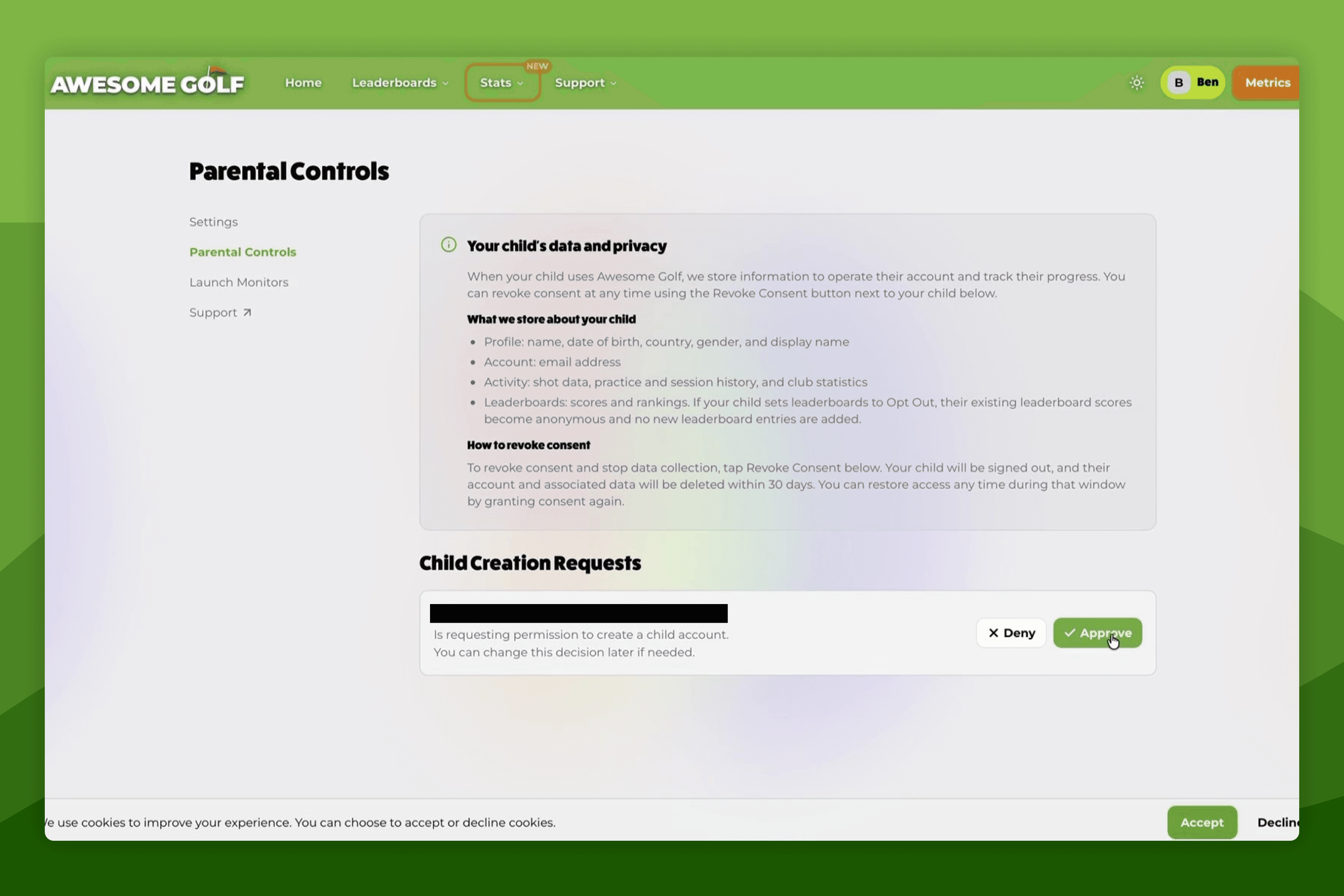 How-To GuidesHow to Provide Parental ConsentThis guide is for parents and guardians who have received a consent request for a child's Awesome Golf account.
- ReferenceParental ConsentAwesome Golf includes parental controls to comply with regulations protecting children in digital environments. Parental controls are managed via Awesome Golf Insights under your name → Parental Settings, which opens the Parental Controls page. For background on why these controls are required, see Understanding Parental Consent.
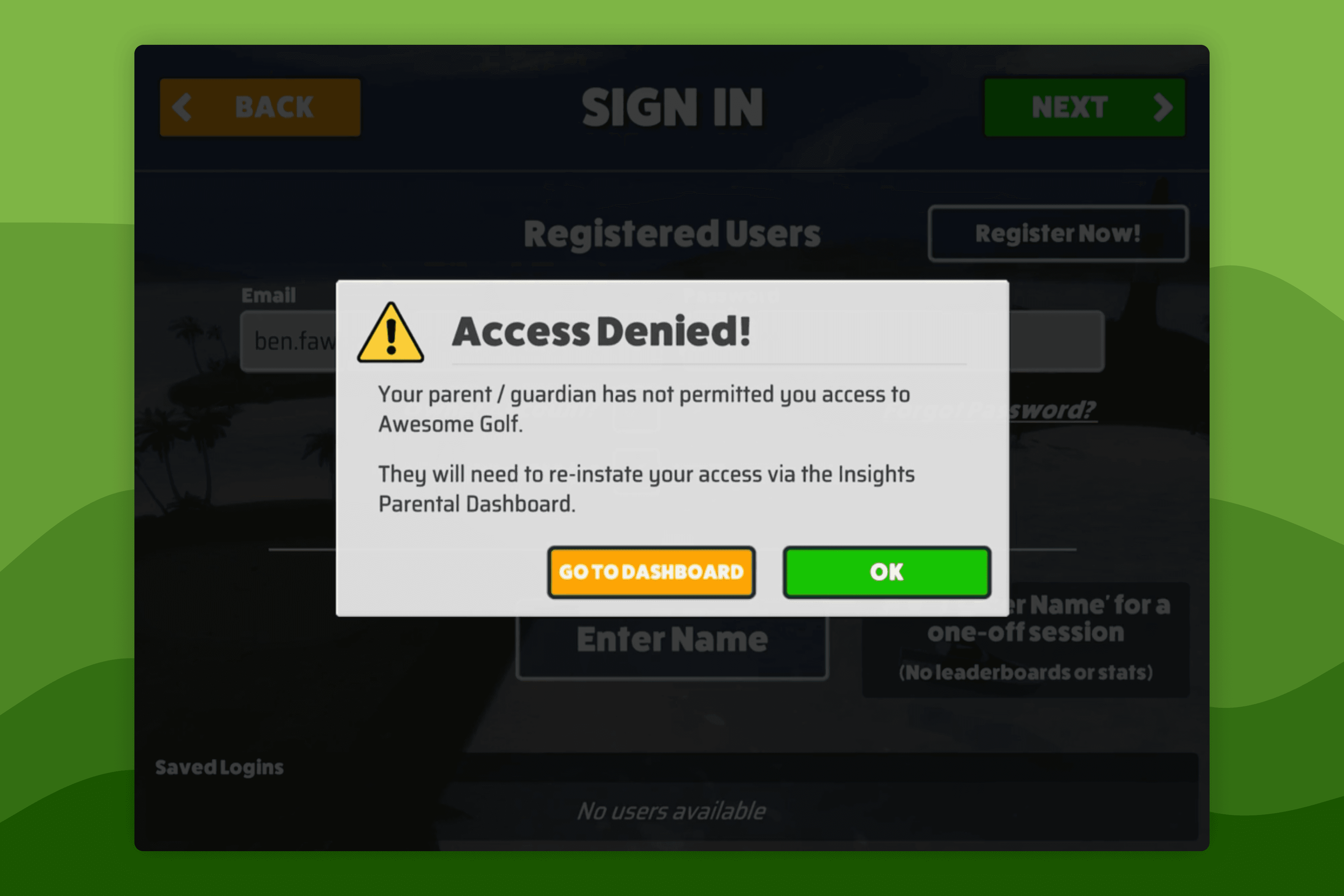 How-To GuidesHow to Fix the "Access Denied" Error on a Child AccountThe Access Denied message appears when a child's Awesome Golf account has had parental consent revoked. The account is suspended until a parent or guardian reinstates access from Awesome Golf Insights.
Still need help?
- Contact supportLive chat, WhatsApp or email
- Ask the communityAwesome Golf Facebook group
- Search the docsFind another guide
New to Awesome Golf? Start a free trial or view pricing.