

How to Compare Clubs and Distances with Awesome Golf Insights
4 min read
Alongside your Awesome Golf Simulator experience, comparing your distances with different clubs is an important way of reviewing your stats and performance to help you improve - and a key analytical tool provided by Awesome Golf Insights.
Awesome Golf Insights provides two different ways of comparing your clubs and distances: Club Comparison, and Club Distances.
Club Comparison
Club Comparison is a tool for comparing two different clubs to help you select the best club for you, or see your improvement with the same club over time. To find the Club Comparison tool, go to insights.awesome-golf.com/club-comparison, or select Stats in the navigation bar, then select Club Comparison in the dropdown dialogue.
When you have data metrics tracked with a specific club, in Awesome Golf Simulator Shot by Shot, Coaching, or Club Distances, you'll be able to select a club for comparison.
To start, select Pick for each of the two clubs you want to compare, choose a club, then select Compare. If a club has multiple descriptions, an N of M button will appear so you can choose which descriptions to include.
Optionally, filter each club by game mode and date range. The Coaching, Shot by Shot and Club Distances chips allow you to select only shots from those practice game modes; the date button (All Time by default) restricts the analysis to shots within a particular time, for example in the last year.
On the range: This shows the grouping for each selected club, visually, and allows you to instantly see the differences in distances, accuracy, and consistency. Each club is highlighted in red or blue on the visualisation, showing each shot as a point and an oval grouping the shots to show the consistency.
Head to head: This shows more raw data and metrics. By selecting Edit stats, you can drag metrics to reorder them and select them to hide or show them.
Club Comparison Tips
- Give each club its own date range to compare the same club over time and see how your distance control and dispersion has changed over time. For example, how accurate you were with your sessions with a 9-iron, 3 years ago compared to the last 6 months.
- Compare different Club Characteristics: By adding two of the same club during your practice session and giving them different text descriptions, each can be selected individually for comparison. For example, a driver with two different shafts, irons with two different lengths, or woods with different head weights.
- Compare different Clubs: Descriptions can also be used to differentiate between two different clubs. For example, comparing a 3-wood from Titleist against one from Callaway.
Club Distances
Club Distances is a tool to help you see how far each of your clubs go and identify any unusual distance gaps between clubs. To find the Club Distances tool, go to insights.awesome-golf.com/club-distances, or select Stats in the navigation bar, then select Club Distances in the dropdown dialogue.
When you have data metrics tracked with a specific club, in Awesome Golf Simulator Shot by Shot, Coaching, or Club Distances, you'll be able to select a club for comparison.
To start, select Edit bag and choose the clubs you want to compare and visualise (up to 13). Clubs with multiple descriptions will show an N of M button to choose which descriptions to include.
Optionally, filter the data under From by game mode and date range.
The Coaching, Shot by Shot and Club Distances chips allow you to select only shots from those practice game modes; the date button (All Time by default) restricts the analysis to shots within a particular time, for example in the last year.
On the range: This shows the grouping for each selected club, visually, and allows you to instantly see the differences in distances, accuracy, and consistency.
Each club in the Distances list has a coloured label, its average distance for the Carry / Total setting (Distance shown), and the other distance beneath it. Switching Carry / Total changes which is shown large and which is used for the groupings on the visualiser.
Each club's shape on On the range covers the middle two-thirds of its shots; select a club in the Distances list to show all of its shots. Each club displays on the visualiser in its respective colour and overlaid to show any crossover between club distances. The visualiser can also be zoomed in or out - and can be dragged to move around the visualisation.
Share this page
Related guides
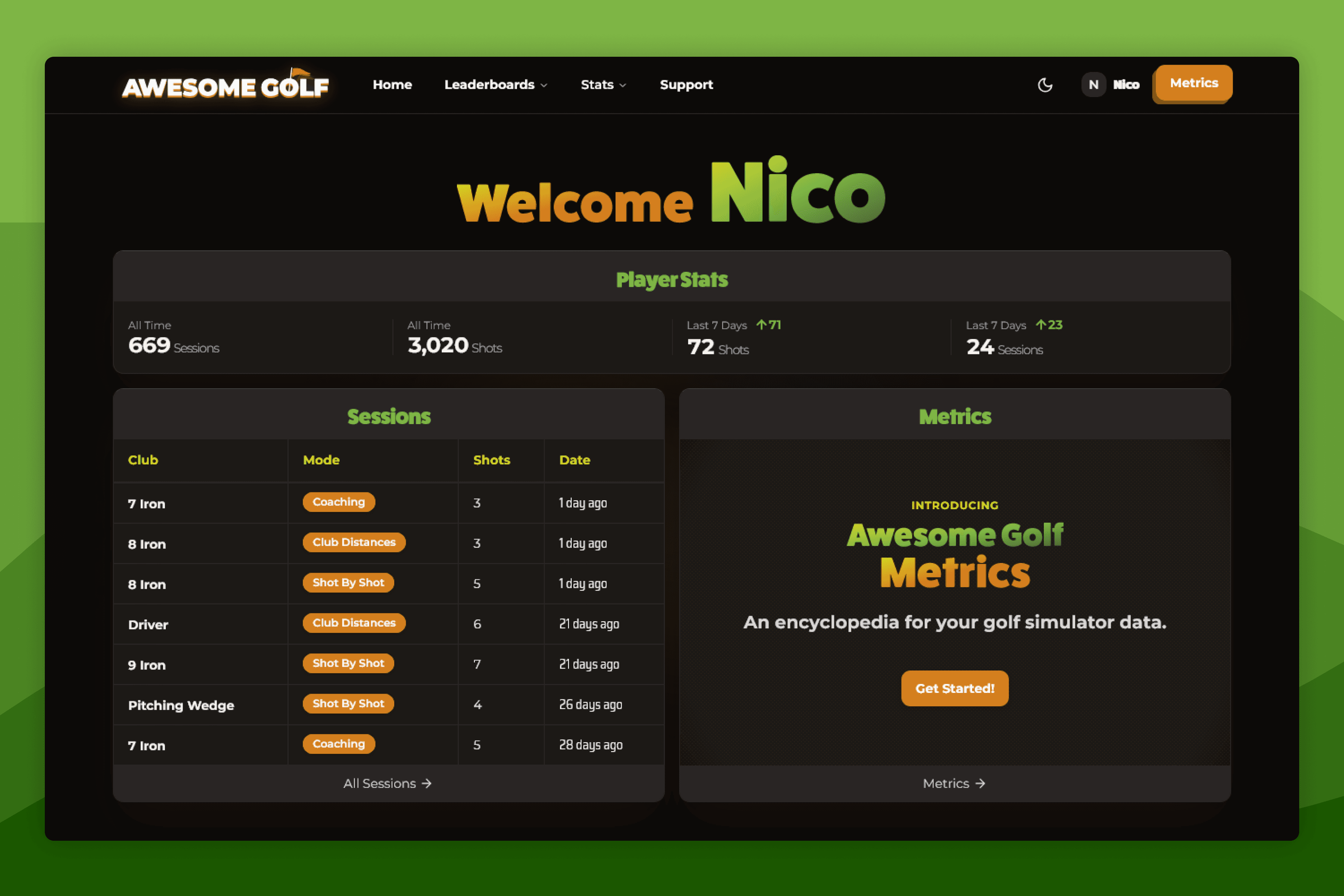 ReferenceAwesome Golf InsightsAwesome Golf Insights provides the tools needed to improve your golf performance and analyse your game as you improve. Review your stats, data points, and metrics for all of your recent sessions; see detailed analysis of the metrics tracked during your practice sessions; compare your performance with different clubs, identifying gaps in your distances; and tracking your Awesome Golf leaderboard performance - and your competition entries.
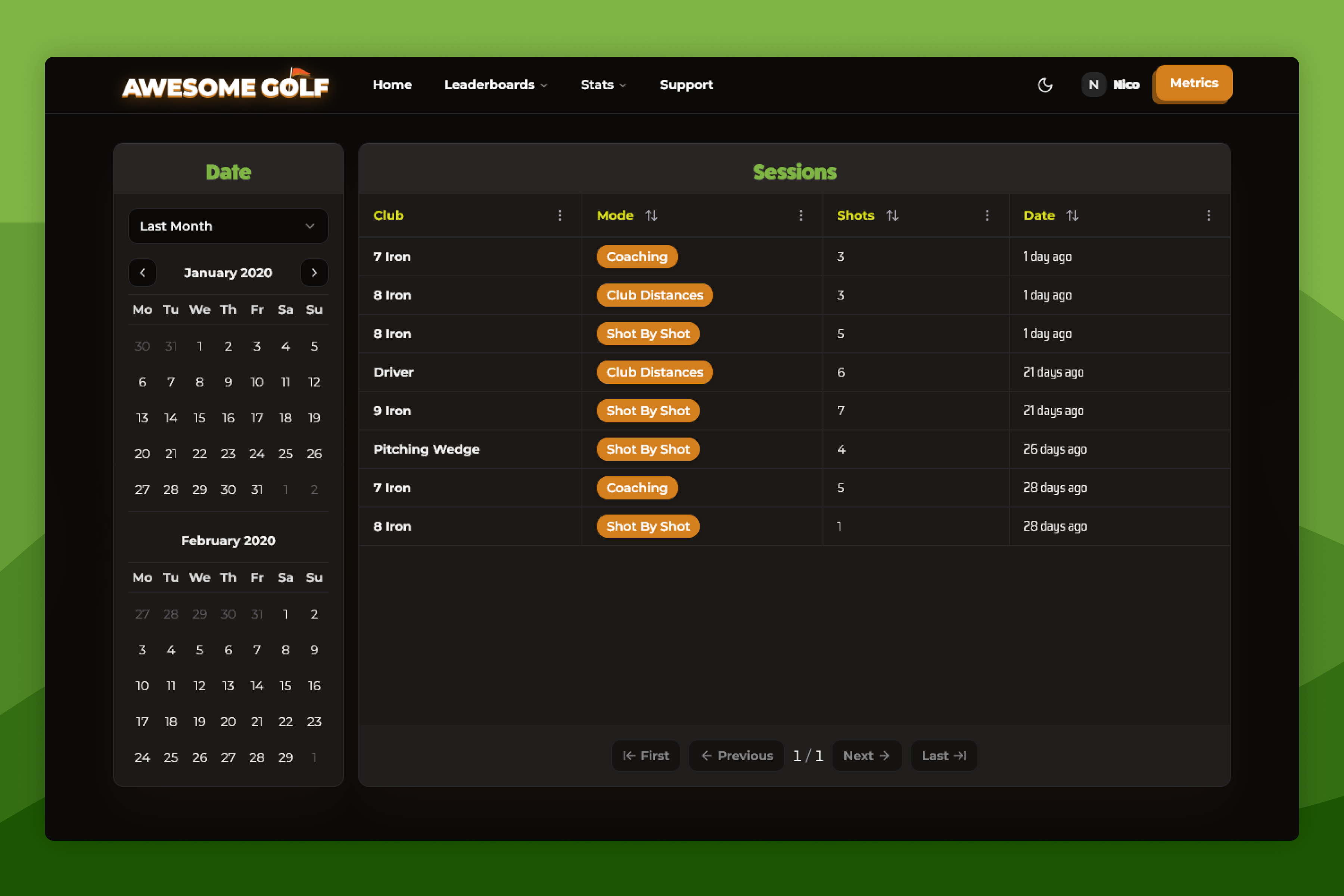 How-To GuidesReview Your StatsAlongside your Awesome Golf Simulator experience we have a number of ways that you can review your shots and stats.
- ReferenceApp ComparisonIn addition to the core game, Awesome Golf Simulator, we offer Awesome Golf Insights to help you review your status, Awesome Golf Assistant as a utility to help you connect Launch Monitors that don't support direct connections, and Awesome Golf Community to let users use Quick QR-Login at Driving Ranges and Indoor Facilities.
Still need help?
- Contact supportLive chat, WhatsApp or email
- Ask the communityAwesome Golf Facebook group
- Search the docsFind another guide
New to Awesome Golf? Start a free trial or view pricing.