
How to Update Garmin Approach R10 Firmware
Firmware for the Garmin Approach R10 can be updated using either the Garmin Golf app or the Garmin Express app on PC.
Update your Garmin Approach R10 Firmware using the Garmin Golf app
- With your R10 connected, open the Garmin Golf app (on iOS or Android) and follow the prompts to download and install the new firmware update.
- Your R10 will flash purple while the firmware is being installed - once it stops, you’re good to go.
For more guidance on updating your Approach R10, see the following guide from Garmin: support.garmin.com/?faq=x6LwXED5ub2Dy8lyR4no76.
Update your Garmin Approach R10 Firmware using Garmin Express
Power-on your Garmin Approach R10 and connect it to a computer using a USB-C data cable.
Open the the Garmin Express app.
Select the device from the list - or select Add a Device to search for the R10, then select the device when it is found.
If the Launch Monitor cannot be found, restart the R10 and re-connect it to the computer.
When connected to your R10, Garmin Express will check for available updates and prompt you to install a new version if one is available.
If an update is available, select Install to start the firmware update.
Your R10 will flash purple while the firmware is being installed - once it stops, you’re good to go.
For more guidance on updating your Approach R10, see the following guide from Garmin: support.garmin.com/?faq=x6LwXED5ub2Dy8lyR4no76.
Confirm your Garmin Approach R10's Firmware Version
You can verify your firmware version in any of these places whilst your R10 is connected:
- Garmin Express
- Garmin Golf app → My Devices
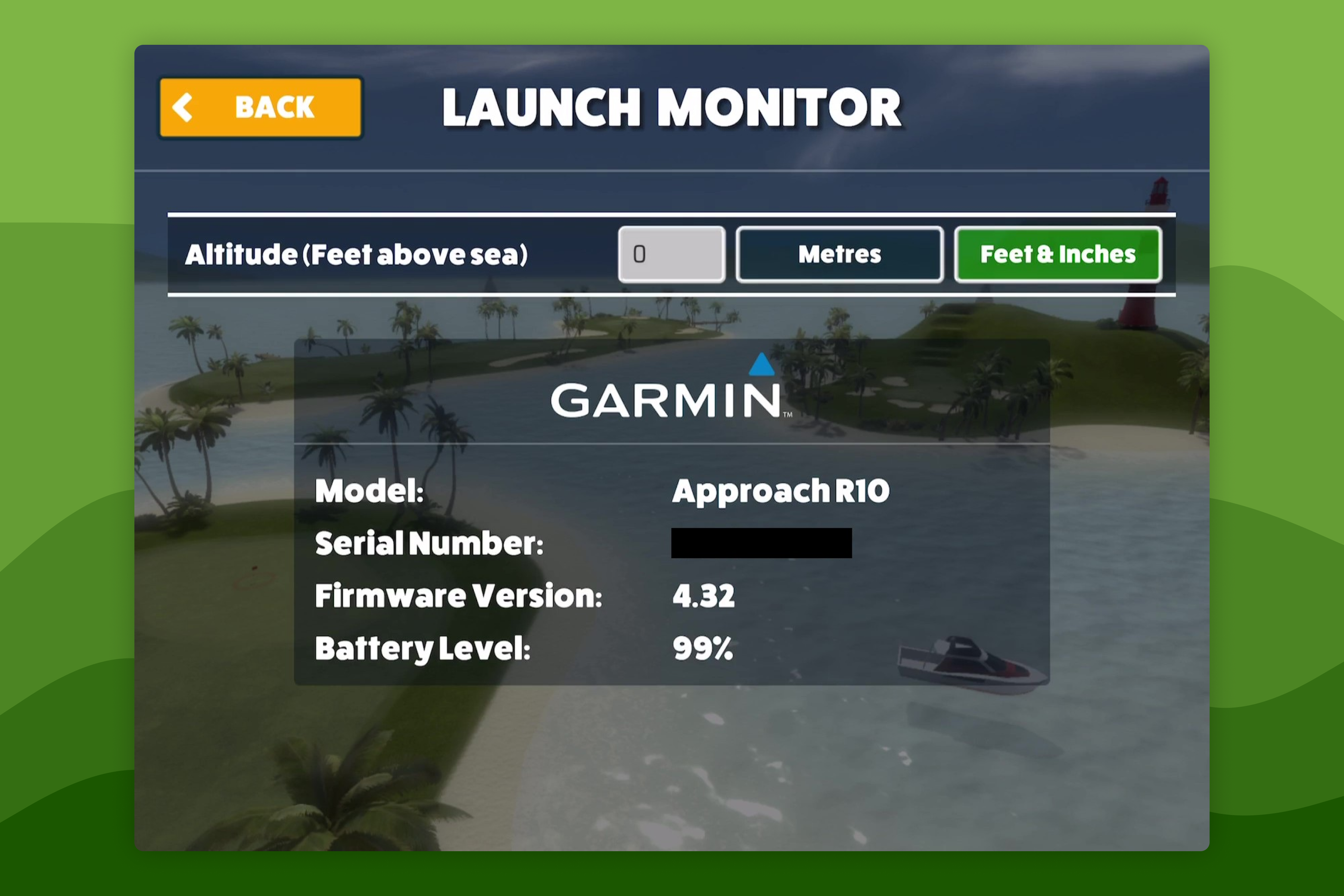
- Awesome Golf Simulator → Settings → Launch Monitor
History
- Firmware Version 4.40 for the Garmin Approach R10 has a known issue with club and ball data reporting with third-party simulator software. It is recommended to update your R10's firmware to v4.50 and higher.