How to Update Garmin Approach R50 Firmware
2 min read
Firmware for the Garmin Approach R50 can be updated automatically while the Launch Monitor is connected to the Internet, or by using the Garmin Express app on PC.
Update your Garmin Approach R50 Firmware using Wi-Fi
The Garmin Approach R50 will automatically check for updates behind-the-scenes when connected to the Internet using Wi-Fi. When an update is available and downloaded your Approach R50 will prompt you to install the update.
To check for updates manually:
- Power-on the Garmin Approach R50 and select the menu button in the bottom right corner of the R50's screen.
- Select Settings → Software Update.
- If an update is available, select Download and Install.
For more guidance on updating your Approach R50, see the following guide from Garmin: support.garmin.com/?faq=FnDBTxU6xtAM6HdP1GTyh5.
Update your Garmin Approach R50 Firmware using Garmin Express
Power-on your Garmin Approach R50 and connect it to a computer using a USB-C data cable.
Open the the Garmin Express app.
Select the device from the list - or select Add a Device to search for the R50, then select the device when it is found.
If the Launch Monitor cannot be found, restart the R50 and re-connect it to the computer.
When connected to your R50, Garmin Express will check for available updates and prompt you to install a new version if one is available.
If an update is available, select Install to start the firmware update.
On-screen instructions will guide you through update process to finish installing the updates.
For more guidance on updating your Approach R50, see the following guide from Garmin: support.garmin.com/?faq=FnDBTxU6xtAM6HdP1GTyh5.
Confirm your Garmin Approach R50's Firmware Version
You can verify your firmware version in any of these places whilst your R50 is connected:
- Garmin Express
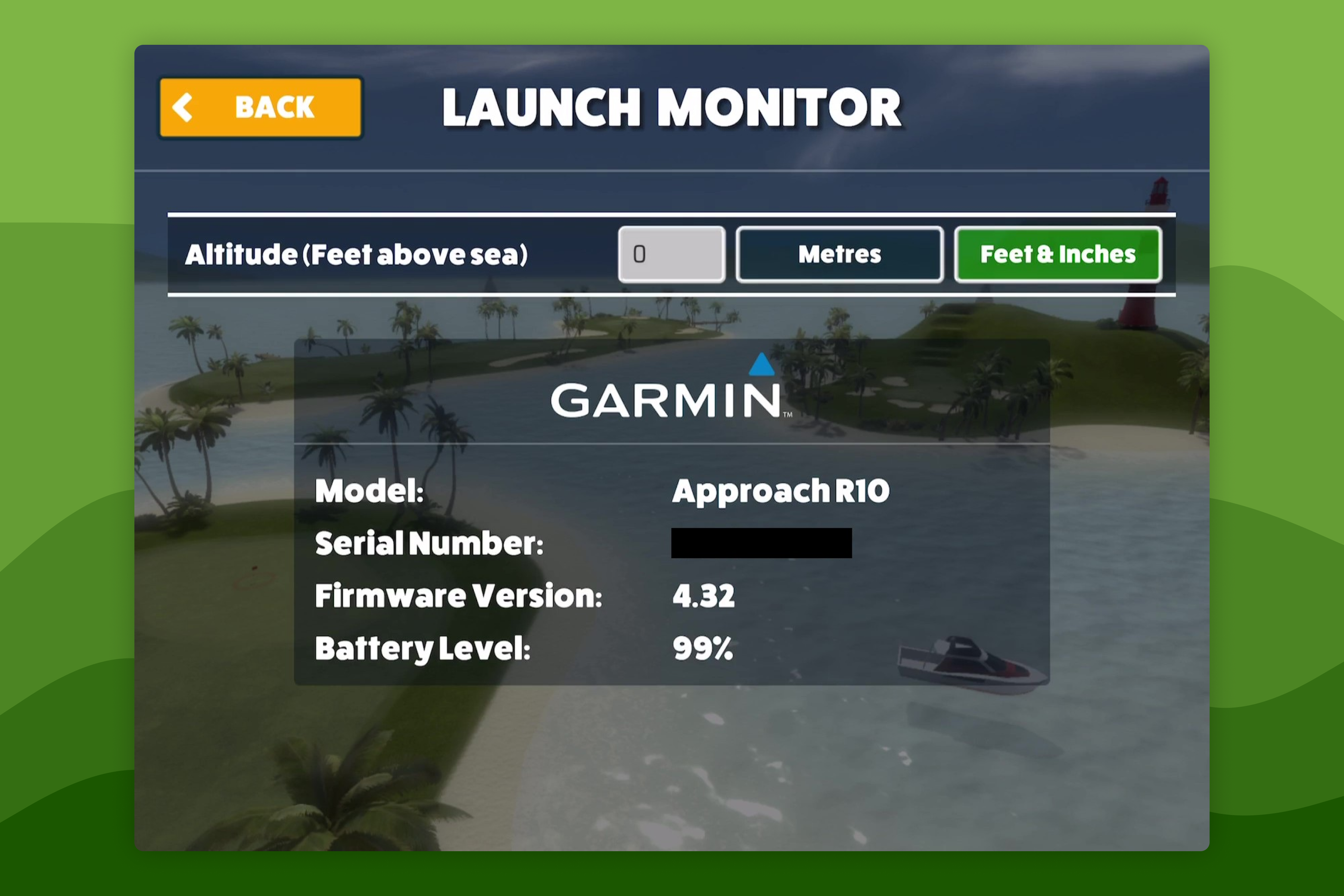
- Awesome Golf Simulator → Settings → Launch Monitor