How to Update Foresight Sports GC3 Firmware
Firmware for the Foresight Sports GC3 can be updated automatically while the Launch Monitor is connected to the Internet.
Power-on the GC3 and connect it to power.
Connect the Launch Monitor to the Internet via:
- Ethernet cable
- Wi-Fi: Settings → Network → Wi-Fi
On the GC3, select Quick Launch Menu in the top-center of the screen → Settings → Firmware.
Select Check for Updates - if an update is available you'll be prompted to update.
Select Download and Upgrade to start the firmware update process. The Launch Monitor will start to automatically download, install, and restart.
For more guidance on updating your Foresight Sports GC3, see the following guide from Foresight: help.foresightsports.com/hc/articles/46423524089107.
Confirm your GC3's Firmware Version
You can verify your firmware version in any of these places whilst your Launch Monitor is powered on:
- GC3 → Settings → Firmware
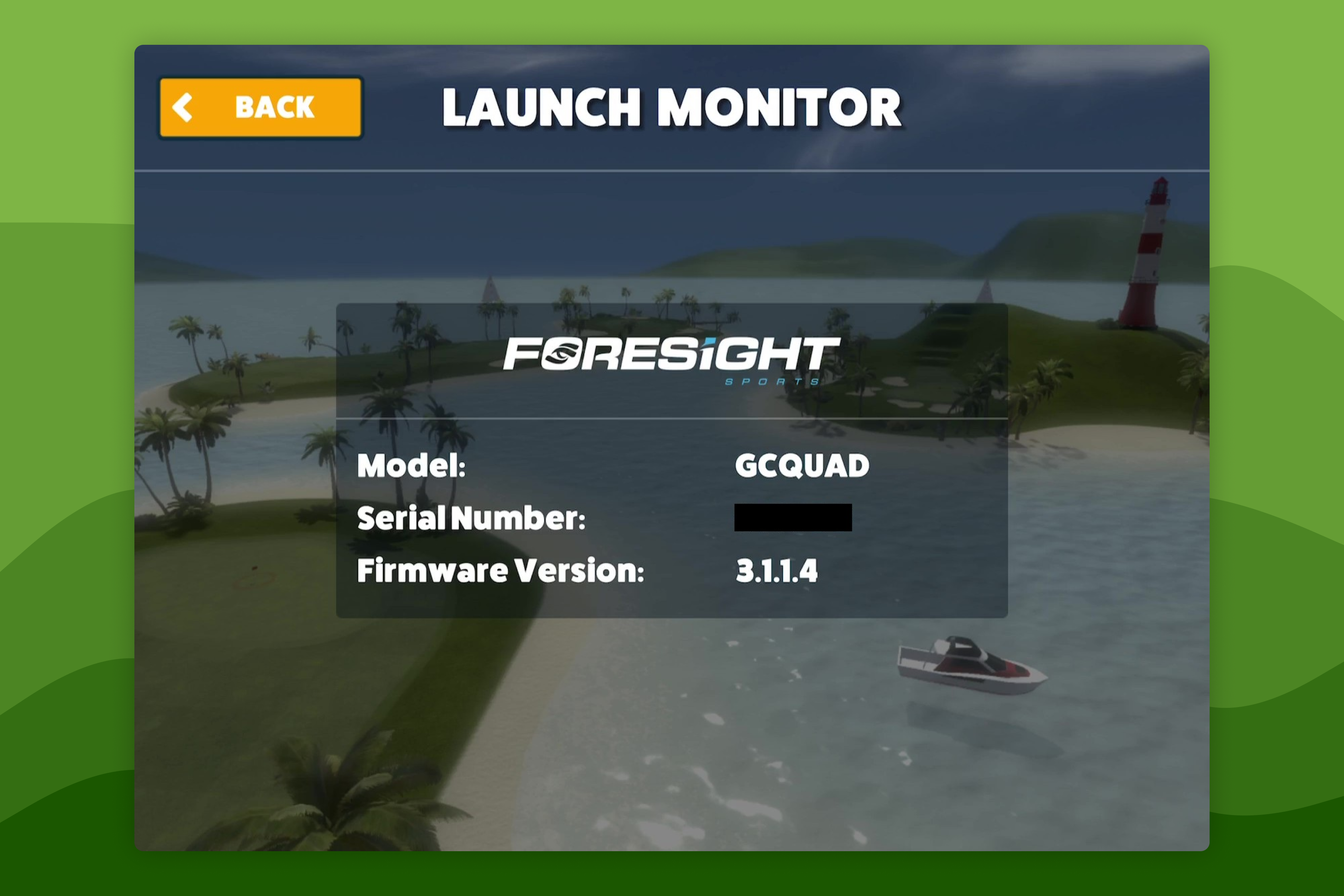
- Awesome Golf Simulator → Settings → Launch Monitor